컴퓨터와 브라우저 사용하기
ChatGPT는 화면에 보이는 내용을 읽고, 사용을 허용한 앱과 웹사이트에서 클릭하고 입력할 수 있습니다. 스프레드시트 작업을 처리하거나, 여러 웹사이트에서 주제를 조사하거나, 이미 로그인한 사이트의 양식을 작성해 보세요.
Use Computer, Browser, or Chrome
Type @ in a chat to choose one of these plugins.
- Computer
ChatGPT can navigate desktop apps, read information, and use their controls. For example, it can find categories that are over budget in a Numbers spreadsheet, change an app setting, or start a playlist in Spotify.
- Browser
Research a topic or compare sources in the browser inside the ChatGPT desktop app. You can also open a site ChatGPT is building and leave feedback on the page.
- Chrome
Let ChatGPT work in your regular Chrome browser, including sites where you’re already signed in. It can start a new tab, read an internal dashboard, use page controls, or fill out a form.



Get set up
In the ChatGPT desktop app, select ChatGPT, choose Work, and open Plugins. Install Computer Use for desktop apps, Browser for the built-in browser, or Chrome for your regular browser. Follow the setup steps for the plugin you need.
Browser is built into the ChatGPT desktop app. Open it from the toolbar after installing the plugin. On macOS, Computer Use needs Screen Recording and Accessibility permissions. For Chrome, install the browser extension and approve its permissions when prompted. Keep Work locally selected when the task needs apps or files on your computer.

Share an app window with Appshots
An Appshot attaches your frontmost Mac window to a chat. It includes a screenshot and any text the app makes available.
Bring the window you want to share forward and press both Command keys (⌘ + ⌘). This takes a real Appshot. Use it when an error, spreadsheet, design, or settings screen is easier to share than describe.
For example, take an Appshot of a Slack thread and ask, “What’s going on here? What was decided, what’s still open, and do I need to respond?”
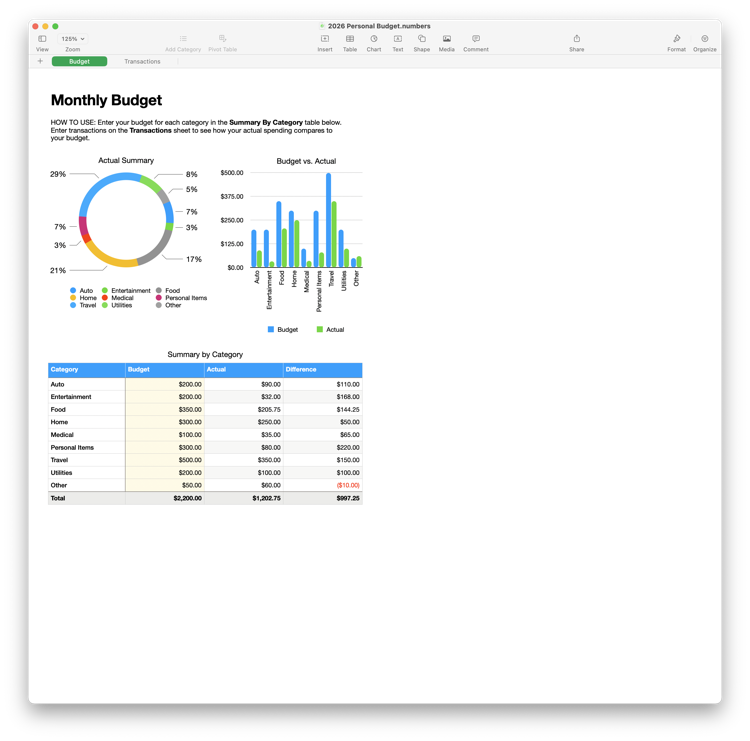


Sample only. Your screen isn’t captured.
Find earlier work with Computer History
An Appshot shares what’s on screen now. Computer History can help ChatGPT recall earlier work from the apps and websites you choose to include, after you turn it on.
For example, ask, “Find the planning document I was working on yesterday.” It can only use the activity it captured, not everything you have ever done on your computer.
Optional setup and privacy
On an eligible Mac account, open Settings → Integrations → Computer history and select Turn on. Computer History is off by default and requires Memories. Business and Enterprise administrators must grant access before you can opt in.
Choose the apps and websites to include, and pause collection for sensitive work or communications unless the people involved have agreed. Read the setup and privacy guide before enabling it.
Use ChatGPT inside Chrome
Open ChatGPT from Chrome’s toolbar or Extensions menu. The chat opens beside the page you’re viewing, so you can ask about it without copying everything into a new conversation.
Ask ChatGPT to explain a chart or compare this week’s dashboard numbers with last week’s. It can also work on the page: change filters, open a report, or fill out a form.

Manage app and website access
In the ChatGPT desktop app, open Settings > Computer use to choose which desktop apps ChatGPT can use. Select Manage next to Chrome to review allowed websites, and check Always-allowed apps to remove access you no longer need.
For websites in the built-in browser, manage access in Settings > Browser.



Try it
Complete the setup steps, then edit a prompt below and select the arrow to open it in ChatGPT. In the desktop app, choose Work and select Work locally before sending.
-
Computer
@Computer, Spotify를 열고 조용하고 가사가 없는 집중용 플레이리스트 3개를 찾아 그중 하나를 재생해 줘.
Open this prompt in ChatGPT Work (opens in a new tab) -
Browser
@Browser, 고객 지원에 AI를 활용하는 회사 사례 3개를 조사해 줘. 프레젠테이션용으로 핵심 사실과 출처 링크를 정리해 줘.
Open this prompt in ChatGPT Work (opens in a new tab) -
Chrome
@Chrome, 내가 열어 둔 대시보드를 살펴봐 줘. 이번 주와 지난주를 비교하고 가장 큰 변화를 설명해 줘.
Open this prompt in ChatGPT Work (opens in a new tab)
Up next
공유 가능한 사이트 만들기
원하는 것을 설명하면 ChatGPT가 실제 웹사이트를 빌드하고 호스팅할 수 있으며, 휴대전화의 ChatGPT Work에서도 가능합니다. 대시보드, 공유 여행 플래너, 인터랙티브 도구, 게임 등 상상하는 거의 무엇이든 만들어 보세요.