공유 가능한 사이트 만들기
원하는 것을 설명하면 ChatGPT가 실제 웹사이트를 빌드하고 호스팅할 수 있으며, 휴대전화의 ChatGPT Work에서도 가능합니다. 대시보드, 공유 여행 플래너, 인터랙티브 도구, 게임 등 상상하는 거의 무엇이든 만들어 보세요.
Turn an idea into a website
Start with an idea, or keep going in a conversation you already have. Ask ChatGPT Work to make a website, and tell it what people should be able to do there. ChatGPT handles the code and hosting.
The site can save information in a database, such as votes, expenses, or form responses. It can also store uploaded files, like receipts, photos, or documents. You can choose who is allowed to visit.
Imagine you’ve been planning a trip with friends in ChatGPT. You’ve already chosen dates, found a place to stay, and collected reservations. Mention @Sites in that conversation to turn the plan into a website the whole group can use.
 @Sites
Copy this prompt into the conversation where you planned the trip.
Different sites you can build
Make a storefront, explore a set of data, build a game, or give your team a working dashboard. These examples show a few possibilities.
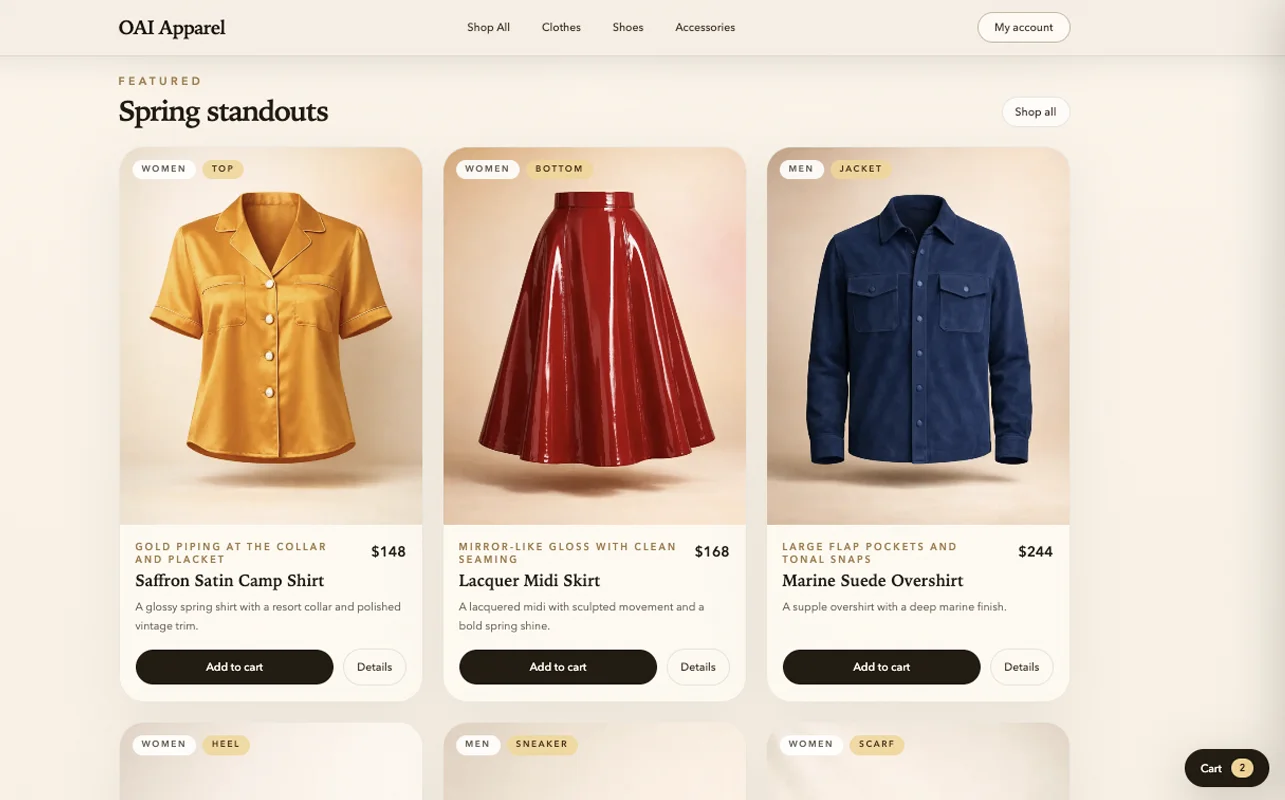



See more projects in the project showcase.
Make changes in the browser
In the ChatGPT desktop app, open your site in the in-app Browser. Leave a comment on the part you want to change, then ask ChatGPT to make the edit in the same conversation. For the trip site, you might say, “Move the itinerary above the map,” or “Let everyone upload a receipt next to each expense.”
On the web, open the site’s preview, select Edit, and describe your changes. You can also return to the Work conversation from your phone and keep asking for updates.
Choose who can visit
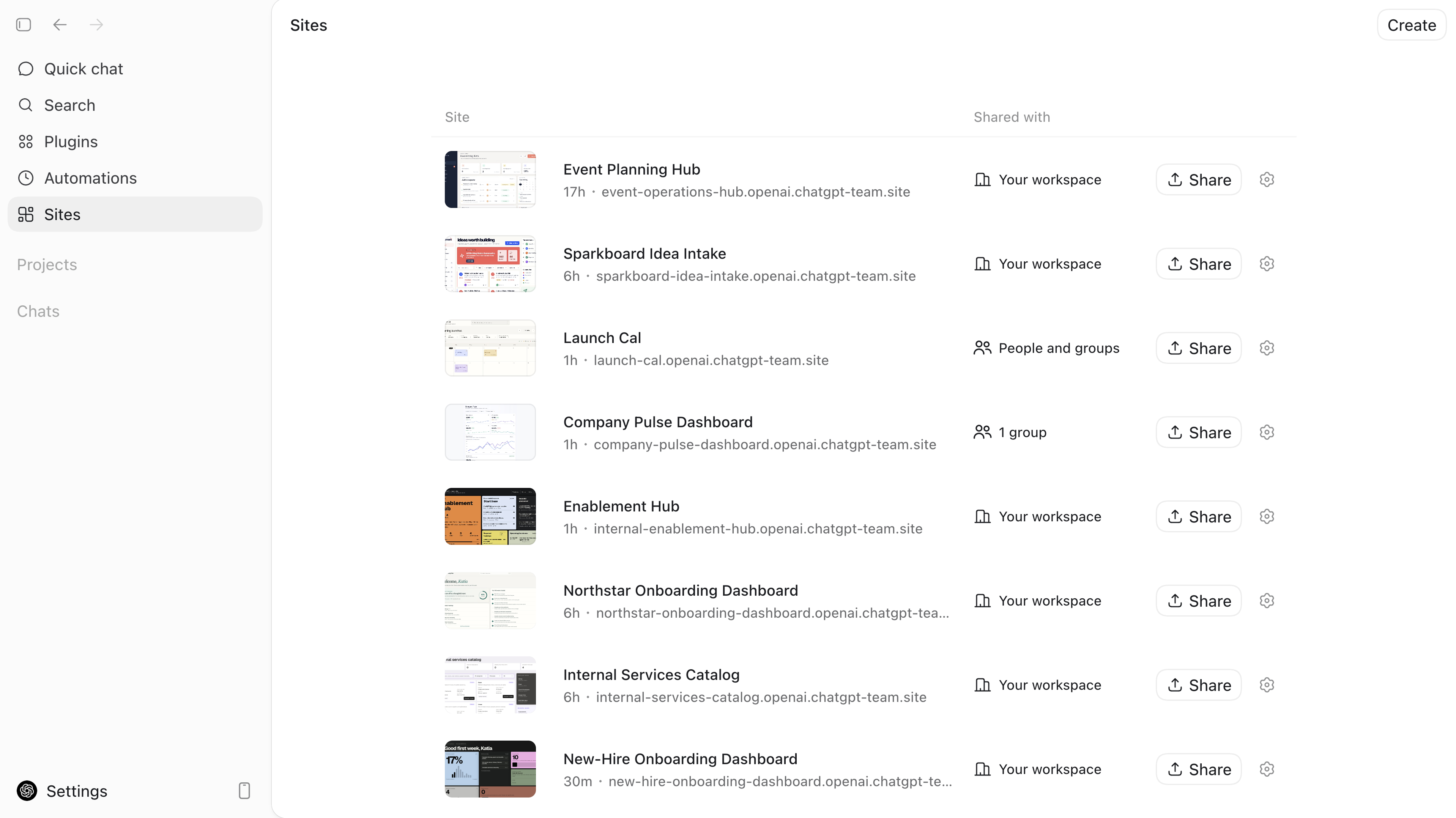
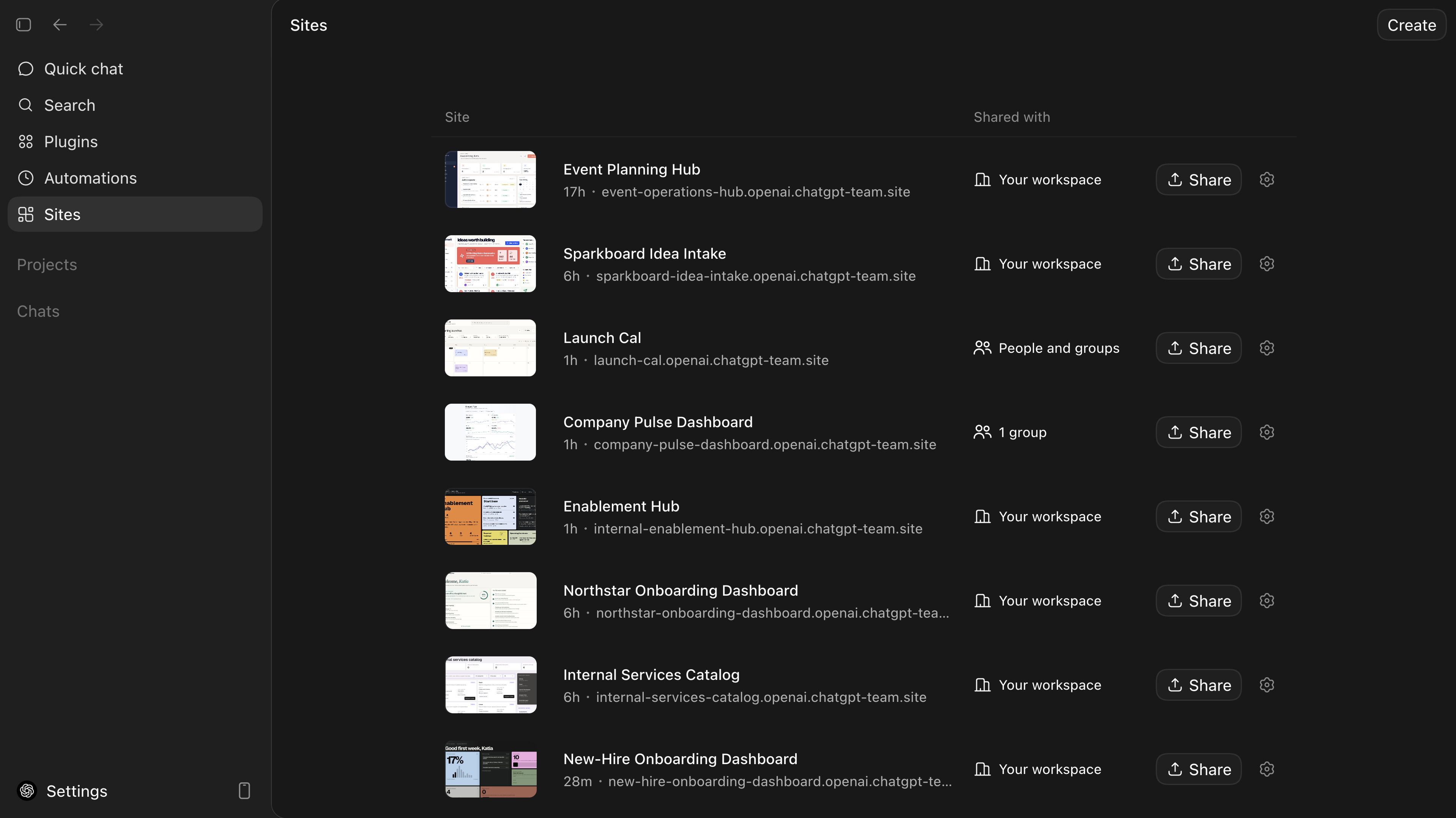
A new site is limited to you and your workspace admins. Open Sites, find the site, and select Share to choose who can visit. The available options depend on your account and workspace settings.
- Owner and workspace admins
Keep the site limited while you review it.
- Selected people or groups
Give access to particular teammates or groups.
- Anyone in your workspace
Make the site available across your organization.
- Anyone on the internet
Let anyone open the site, if public publishing is enabled.
Try it
데모 스토어프론트, 부동산 비교 도구, 게임, 또는 이미 있는 계획을 위한 사이트를 만들어 보세요.
Opens a new ChatGPT draft. To use details from an existing conversation, paste this prompt there instead.
Up next
휴대전화에서 작업하기
모바일 앱에서 ChatGPT Work를 사용하거나, 원격을 사용해 연결된 컴퓨터에서 작업을 검토하고, 승인하고, 시작하세요.