
A deep scan runs multiple independent standard scans over the same repository or folder and combines their findings. Use it when you want repeated review and can allow for the additional runtime and token use.
Start with a standard scan to check the scope and security context. A deep scan can find issues an earlier pass missed, but results can still vary and coverage can remain incomplete. For a diff, use Review code changes.
Start the deep scan
For the best scan quality, use gpt-5.6-sol
with xhigh reasoning effort.
- Open Security > Scans and select + Scan.
- Choose a repository or folder, select Codebase, and turn on Deep scan. The scan reviews the entire selected repository or folder.
- Choose the model and reasoning effort. Add threat-model or deployment context under Additional context.
- Select Start scan.
You can also start it from a Codex conversation:
Use $codex-security:deep-security-scan to run a deep security scan of this repository.For one component, replace “this repository” with the path to its folder.
Deep scan workers inherit your selected model and reasoning settings. Each worker runs a complete standard scan, and Codex Security aggregates the completed results. Follow the saved scan from Scans, or select View activity to inspect its Codex task. Set runtime limits before starting if you need to limit concurrency or duration.
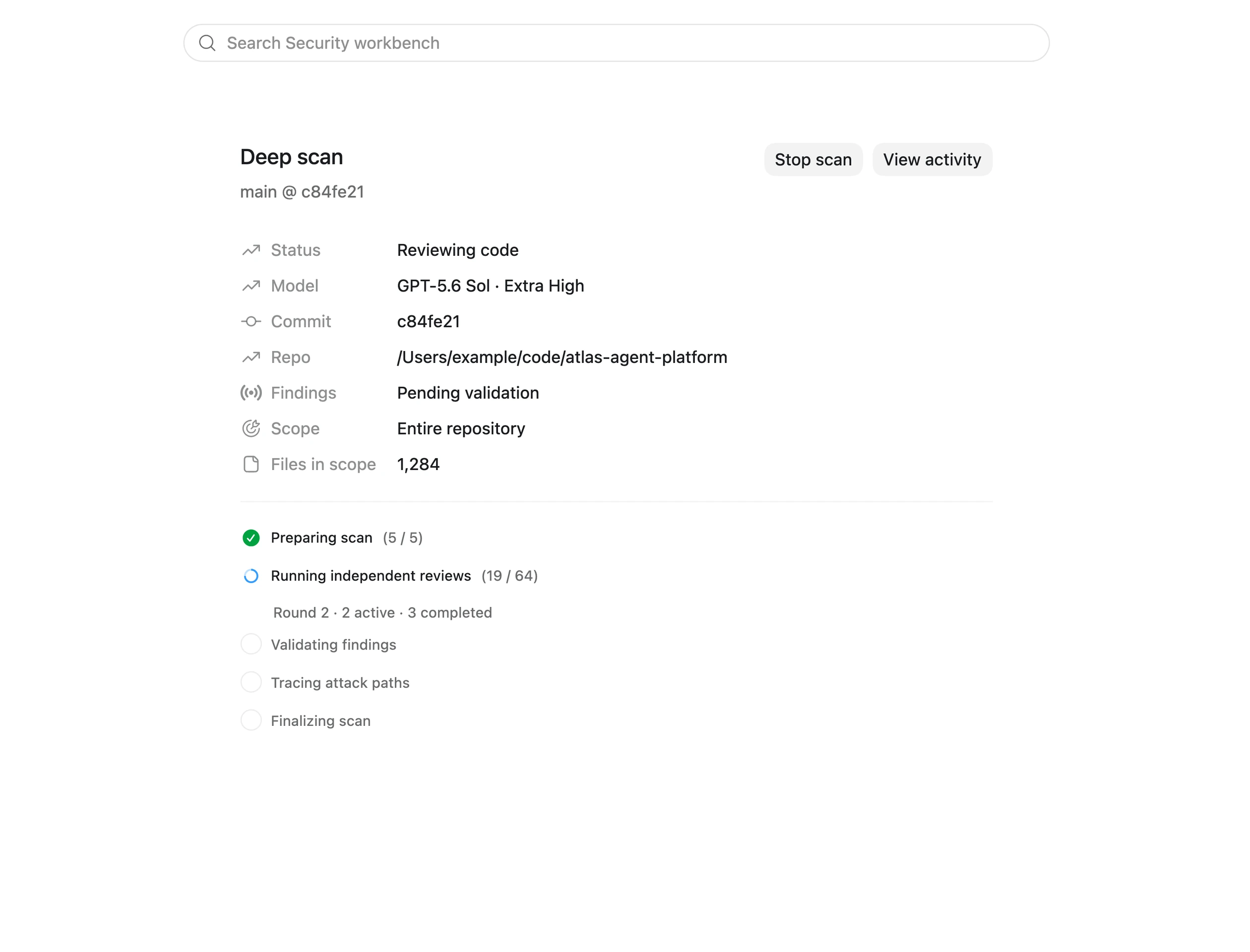
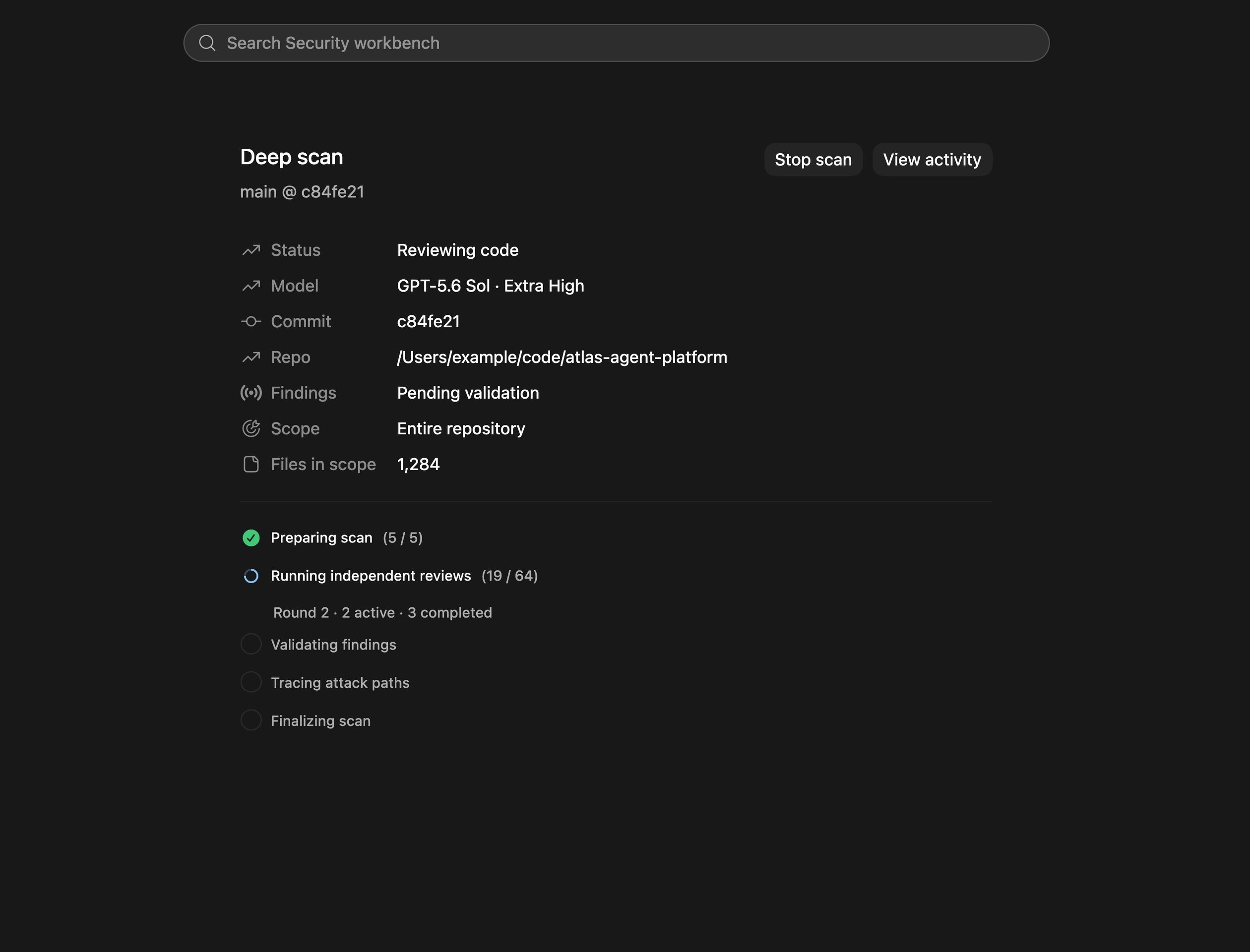
Track the active deep-scan phase and inspect its Codex activity before reviewing the completed result.
Review the result
The scan is complete only after finalization succeeds and generates
report.md. A message that aggregation finished or a scan-manifest.json
file alone doesn’t confirm completion.
Deep scans use the same saved scan details and complete scan directory as
standard scans. Open the completed scan in Scans or review its findings in
Findings. The generated report.md links to detailed vulnerability reports
or structural hardening guidance when you request those outputs.
Keep any linked findings/ and hardening/ directories with the report when
sharing or archiving the result.
Check the coverage summary for deferred areas and the findings for unresolved questions. For a finding you accept, continue with Fix and verify a finding.
Configure deep-scan runtime
To control a deep scan’s concurrency and duration, create or edit
~/.codex/codex-security/config.toml. If you set CODEX_HOME, use
$CODEX_HOME/codex-security/config.toml instead.
For example, this profile runs a shorter scan with limited concurrency:
[deep_scan]
workers = 2
subagents = 0
stop_after_no_new = 3
max_discovery_runs = 10
max_time_hours = 1.5| Setting | Default | Description |
|---|---|---|
workers |
4 |
Number of independent standard-scan workers allowed to run at the same time. Legacy "auto" also resolves to 4. |
subagents |
3 |
Number of subagents each worker may start. Set 0 to disable them. |
stop_after_no_new |
4 |
Stop after this many consecutive completed worker scans produce no new findings. |
stop_after_consecutive_errors |
3 |
Stop after this many consecutive worker errors. |
max_discovery_runs |
40 |
Limit the number of independent standard-scan runs before aggregation. |
max_time_hours |
96 |
Limit worker execution to a positive number of hours up to 96; use fractions as needed. |
Lower values can reduce scan time and token use but may miss findings. Configuration changes apply to new deep scans, not scans already in progress.
When the time limit expires, Codex Security stops unfinished workers, keeps completed scan results, and aggregates them into the final report. If no worker finishes source review before the deadline, the report records partial coverage.
The max_time_hours setting requires plugin version 0.1.19 or later. See the
plugin changelog for release details.
Handle an interruption or failure
Check the saved scan’s status before starting another scan. In the desktop app, open the scan in Scans. In a Codex conversation, ask Codex to check the existing scan.
- If a wait ends while the scan is still active, return to the same scan or conversation and ask Codex to continue it. A response ending or a wait timing out doesn’t cancel the scan.
- If Codex blocks a worker request because of a misalignment policy violation, Deep Scan reports the refusal and stops without retrying the request.
- If the scan reports a terminal failure or was canceled, keep the error and saved scan directory. Review saved findings separately from pending candidates, which haven’t been confirmed. Coverage is incomplete, so an empty findings list doesn’t establish that the code has no vulnerabilities.
When asking for help, include the Codex CLI or desktop app and plugin versions used for the failed run, plus the provider, model, scan status, and exact error. Versions checked after an update may differ. See Check versions and updates.