
OpenAI models on Google Cloud are in private preview. To use them in your project, request access.
Before you begin
Ask your administrator for the project ID, model name, and Vertex AI location to use with Codex. Your user or service account needs permission to invoke the model in that project. For help setting up billing, accepting a Marketplace private offer, and enabling the model, see the Google Cloud prerequisites.
With the default location, global, Google Cloud can process model requests in more than one region. If your organization requires regional processing, confirm which supported location to use with your administrator before you send a request.
Authenticate on the Codex host
Install the Google Cloud CLI on the machine where Codex runs. For local development, run this command to sign in and set up Application Default Credentials (ADC).
gcloud auth application-default loginIf your administrator has provided an ADC file, skip the interactive sign-in and use the file during setup. Codex runs gcloud auth application-default print-access-token to get an access token.
Set up Google Cloud in Codex
Use Codex CLI 0.167.0 or later, or Codex desktop app 26.1103.32239 or later.
If you’re already signed in to Codex or don’t see Google Cloud in the sign-in options, authenticate on the Codex host, then configure the provider manually. Start a new CLI session or desktop task and verify a model request.
- Start
codex. Select Sign in another way, then Use Google Cloud Vertex AI.
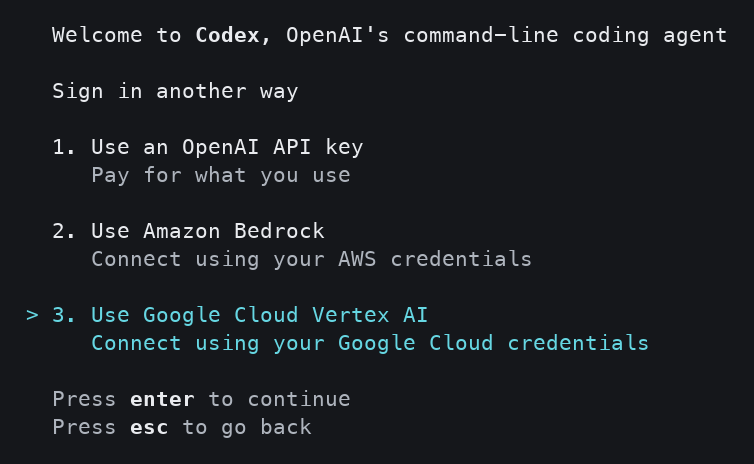
- Enter the Google Cloud project ID from your administrator.
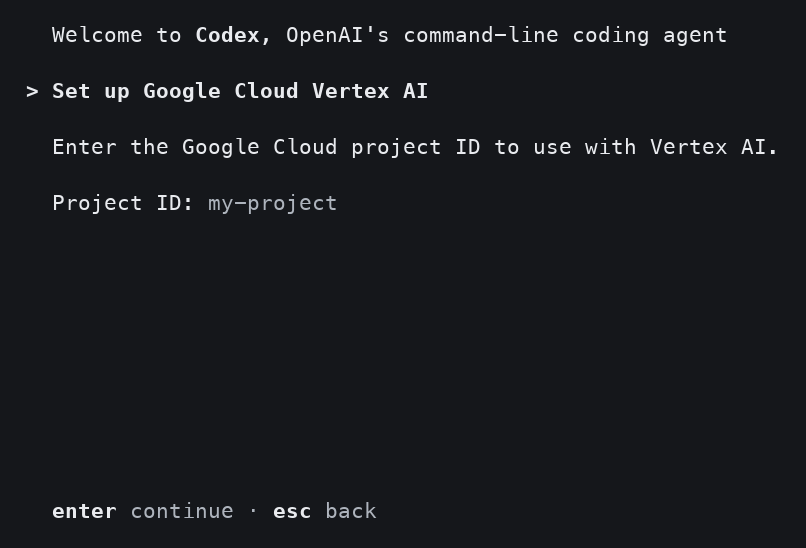
- Enter the Vertex AI location, or press Enter to use
global. - Enter the absolute path to your credential JSON file, or press Enter to use ADC on this computer. Codex checks that it can get a token before it saves your settings.
- Verify a model request.
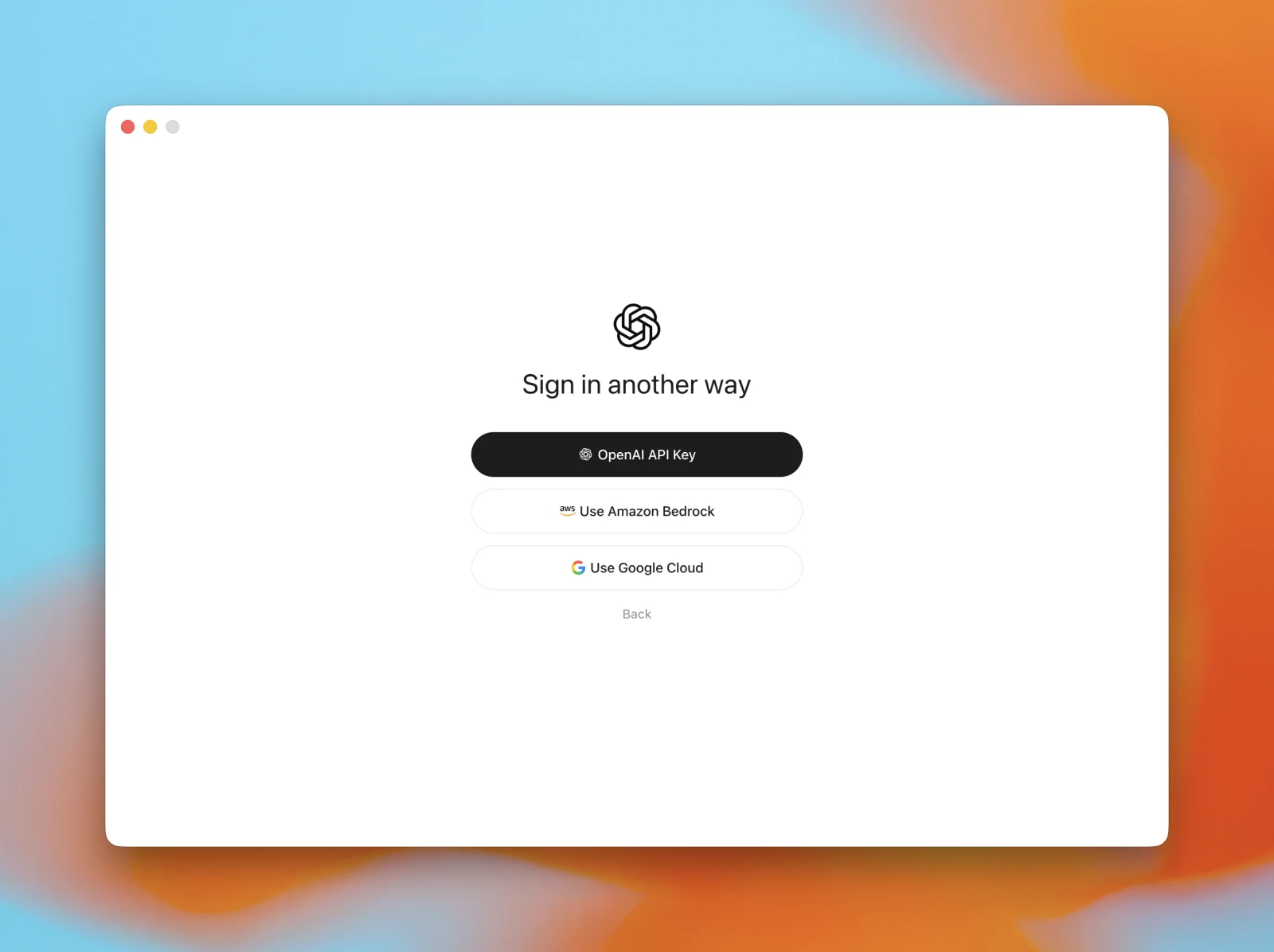
- On Sign in another way, select Use Google Cloud.
- On Set up Google Cloud, enter the Project ID from your administrator.
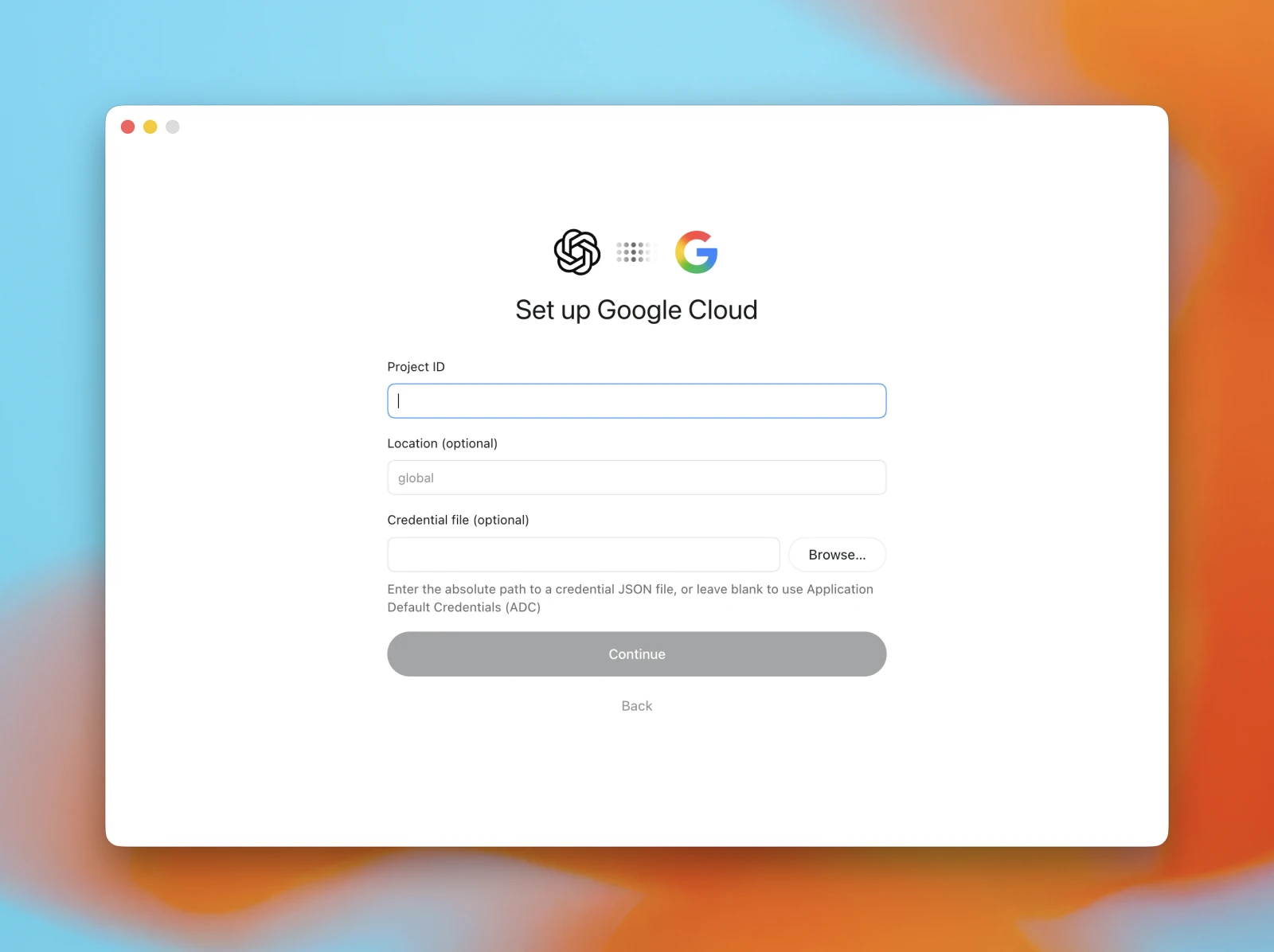
- Enter a Location, or leave it blank to use
global. - In Credential file, enter the absolute path to your credential JSON file or select Browse… to choose it. Leave the field blank to use ADC on this computer.
- Select Continue, then verify a model request.
Configure the provider manually
In ~/.codex/config.toml, set model_provider to "gcp" above any table headers. Set your project ID and location under [model_providers.gcp].
model_provider = "gcp"

[model_providers.gcp]
project_id = "my-project"
location = "global"
If you use an ADC file, add credential_file = "/absolute/path/to/credentials.json" under [model_providers.gcp]. Codex sets GOOGLE_APPLICATION_CREDENTIALS for the authentication command.
You can omit project_id if you set GOOGLE_CLOUD_PROJECT on the Codex host. If you omit location, Codex uses GOOGLE_CLOUD_LOCATION when set and otherwise uses global.
Verify a model request
- Start a new session with
codexand enter/model, or start a new task in the desktop app and open the model picker. - Select a model your administrator has enabled for your project and ask it to reply with a short greeting. A reply confirms that Codex can authenticate and call that model.
If credential validation fails, check that the machine running Codex can run gcloud and read your credential file, if you specified one. To sign in again with local user credentials, run gcloud auth application-default login on that machine.
If authentication succeeds but the model request fails, check that your project ID and location match the model deployment. Ask your administrator to confirm that your user or group has access to the project and that the account running Codex can invoke the model.