

This cookbook shows how to build a ChatGPT workspace agent that prepares sales meeting briefs using your calendar and your team’s customer documents.
In this cookbook, we’ll create a workspace agent through the conversational builder, give it access to our team’s calendars and knowledge bases, and add a brief-writing skill to help craft the agent’s output. Then we’ll test our team agent, schedule it to run on a recurring schedule, and share it with teammates.
Introduction
ChatGPT workspace agents are shared agents that can run repeatable workflows across ChatGPT and independently complete end-to-end tasks. They can use connected apps, follow skills, run on a schedule, and they can be shared with your colleagues in your workspace.
In this cookbook, we’ll build a workspace agent that supports a sales team. Sales teams often spend time manually pulling account notes, recent customer feedback, product usage metrics, and company news to prepare for upcoming customer meetings.
We’ll build a workspace agent that checks the next weekday’s customer meetings, gathers recent account context from SharePoint, and searches the web for company news. We’ll test it in ChatGPT, then set up a weekday schedule to prepare briefs. With the required app actions and approvals, it can save briefs in SharePoint and email a summary.
Prerequisites and setup
For this cookbook, you will need a ChatGPT Business, Enterprise, or Edu workspace with access to workspace agents. Our agent will read upcoming meetings from Google Calendar, save meeting briefs in Microsoft SharePoint, and email a summary through Gmail.
Before you build, confirm these three settings with your workspace admin.
- Workspace agents are available to you. Confirm that you can open Agents and create an agent in your workspace.
- You can share the agent with its connections. This example uses an agent-owned SharePoint connection. Confirm that your workspace allows you to share an agent with that connection and, if you want to list it in the team directory, publish it there.
- The apps and actions you need are available. Check that the workspace allows calendar reads, SharePoint search and file creation, and Gmail sending. Connect accounts with the corresponding Google and Microsoft permissions. If your workspace restricts writes, the agent can return the brief in ChatGPT.
If you want to run a version of this agent from Slack, follow the Workspace Agents in Slack setup instructions. A Slack deployment requires shared authentication for every app connection. This example runs in ChatGPT so each teammate can use their own calendar and email account.
Building your agent
Open Agents in ChatGPT and choose Create → Create agent. The conversational builder can draft the agent profile, choose apps, generate a skill, and write instructions. We’ll review its choices before we test the agent in Preview.
To start from an existing example, choose Browse templates from the Create menu instead.
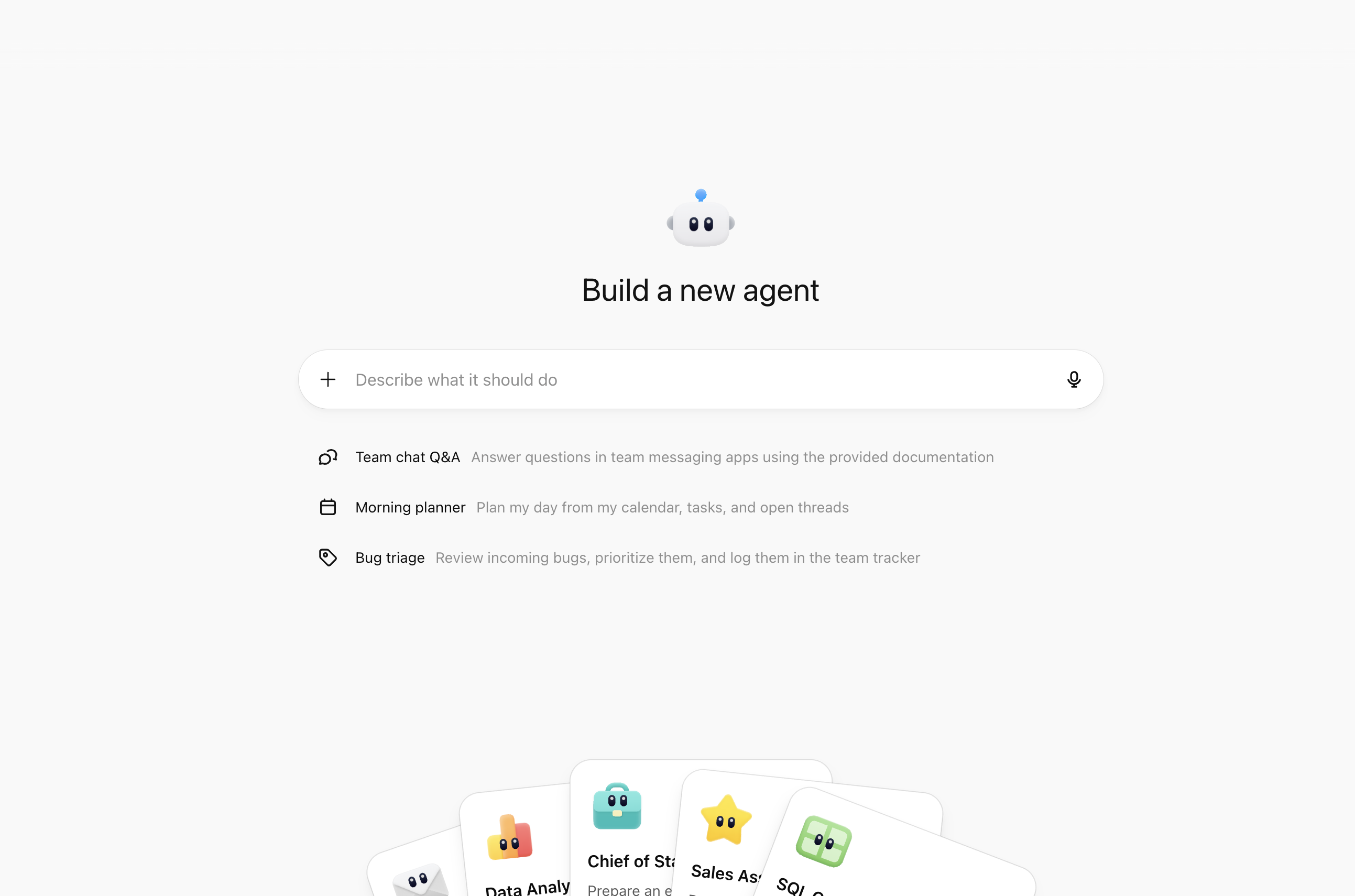
1. Describe your workflow
We’ll enter the following text into the agent builder:
Create an agent to help with sales meeting prep. Check my Google Calendar for customer meetings on the next weekday. On Friday, prepare briefs for Monday. Exclude internal-only meetings and skip events with no external attendees.

For each customer meeting, pull recent notes and feedback from SharePoint, then search the web for any relevant company news from the last 30 days. Then write a 2-3 page meeting brief. Save it as a file in the team's SharePoint folder.

Then, send me an email with a daily summary of my upcoming meetings, with a link to the full brief.
Review the plan, then select Build this agent. Check that the draft includes Google Calendar, SharePoint, and Gmail.
If you don’t have the required apps already configured, the agent builder will walk you through the configuration steps. If Gmail is unavailable, you can ask the agent to return the link to the SharePoint brief in ChatGPT.
2. Review and configure your apps
Now we’ll review the configurations of our apps. Because our agent can access external tools, it’s important to understand the permissions it has to take actions on these tools, and how those permissions change as we share our agent for other teammates to use.
Workspace admins control which app actions are available. For this example, the SharePoint app needs permission to search for customer documents and create meeting briefs. If your workspace limits SharePoint to read-only actions, have the agent return the brief in ChatGPT.
We can click into each app to view and change its permissions.
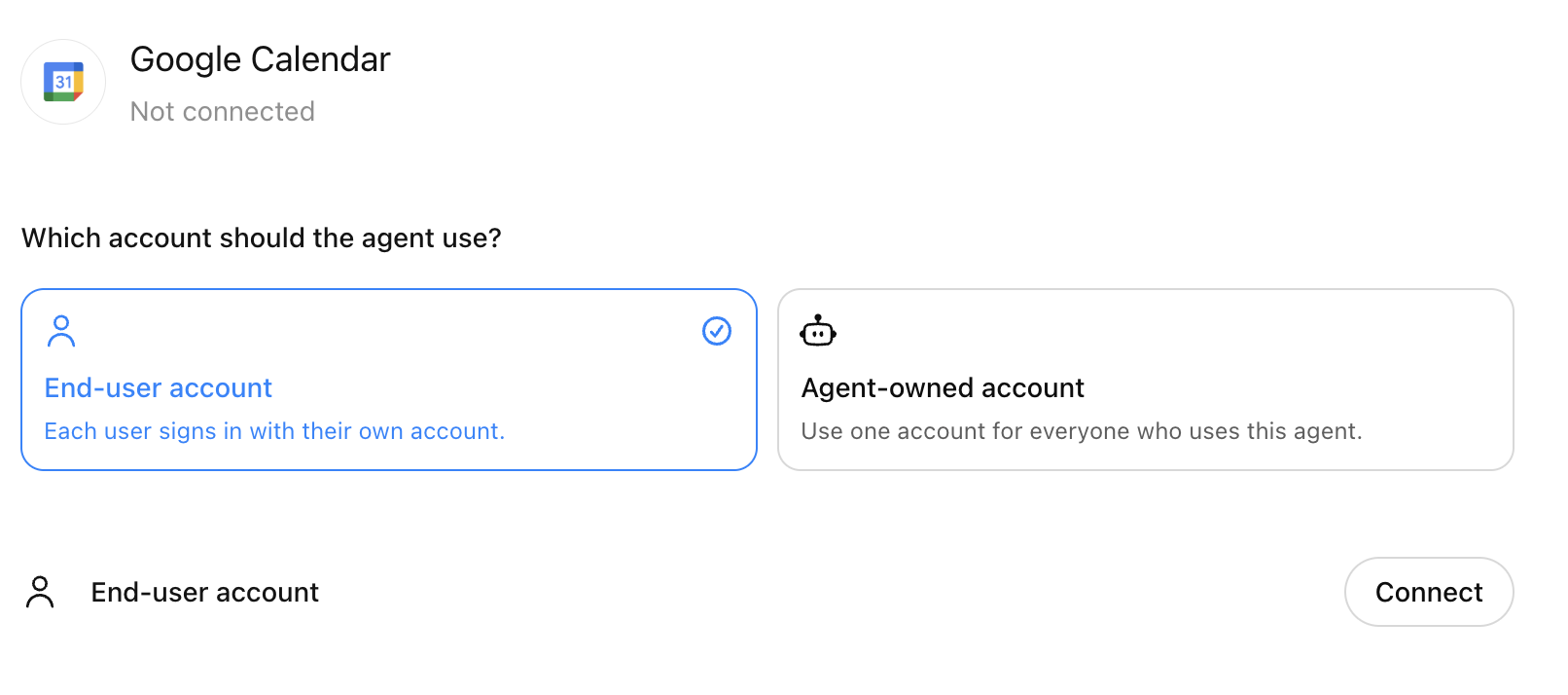
For Google Calendar, use each person’s own connection. Leave Use for everyone off, or choose End-user account if the builder shows account options. Each person who runs the agent in ChatGPT connects their own Google Calendar account so the agent can read their meetings.
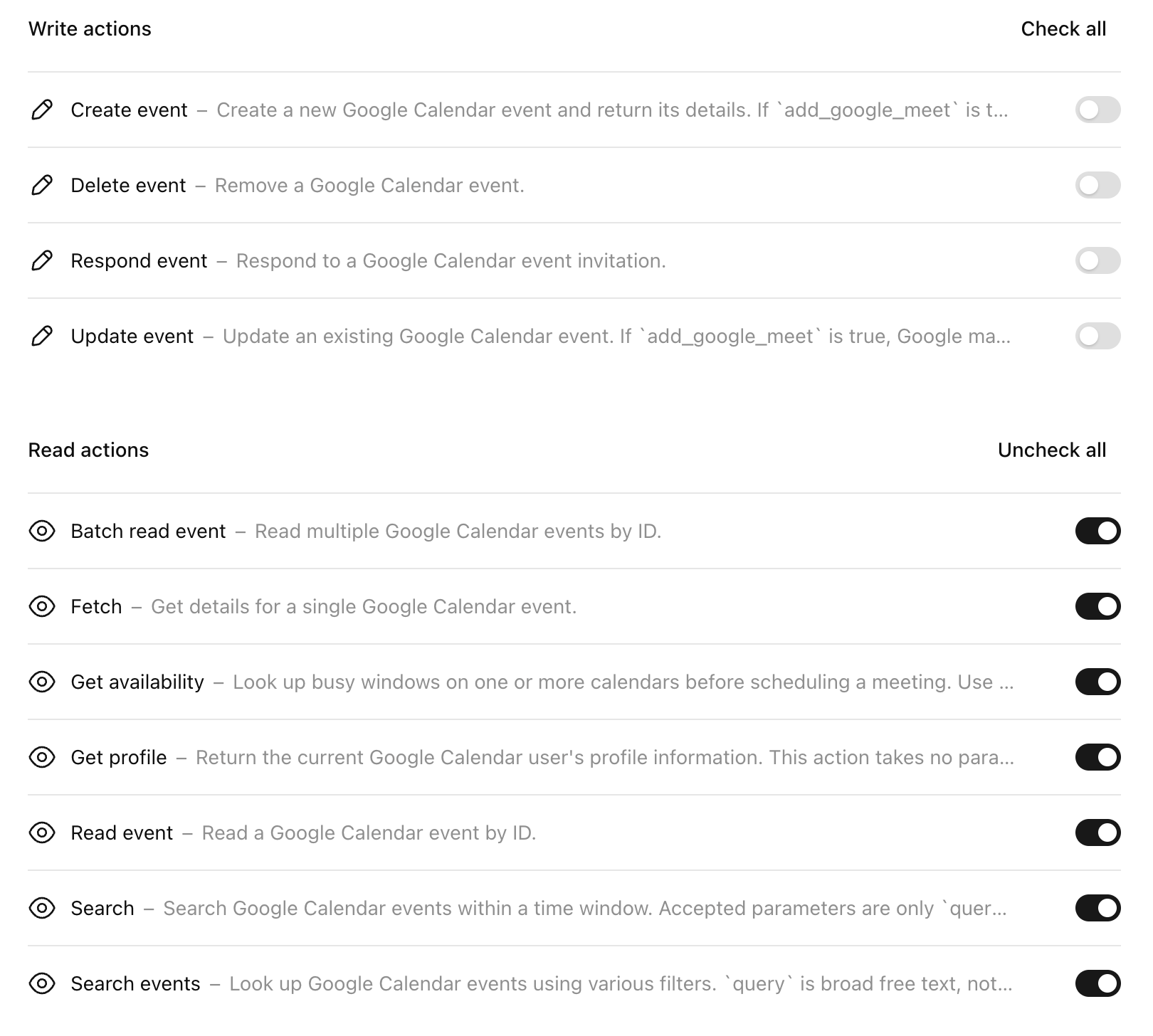
For Google Calendar, we just need to view upcoming meetings and attendees, so we’ll only enable read actions. We can also enforce permissions more granularly, by selecting individual actions to enable or disable.
For Gmail, use each person’s own connection as well. During a ChatGPT run, the agent uses the Gmail connection of the person running it. To deliver the summary, it needs permission to send an email to that person.
For Microsoft SharePoint, turn on Use for everyone, or choose Agent-owned account if the builder shows account options. Connect a sales team service account with access to the customer documents the agent needs and the folder where it will save briefs. The agent uses that same account for every run.
Enable the SharePoint actions needed to find and read the source documents and create a brief in the destination folder. Confirm that the intended recipients can open files in that folder. Leave sharing, deletion, and unrelated write actions disabled.
In each app’s settings, review approvals separately from which actions are enabled. Workspace agents default to asking before write actions. In a test run, check what happens when the agent tries to create the file and send the email before relying on scheduled delivery.
Alongside these apps, the agent uses Web search to find public company news from the last 30 days.
3. Enabling skills and memories for consistent, customized outputs
One of the benefits of using workspace agents is how easy it is to ensure high-quality and consistent outputs, and skills are an ideal way to help our agent follow the same workflow each time it generates a meeting prep document.
Skills package instructions, resources, and scripts to help our agent reliably complete its instructions. To equip our agent with a skill, we’ll select “Add skill” in our agent view. We can upload a skill that we’ve already created (skills are built on the open-source agent skills standard so you can use them across AI products), or we can use the built-in skill builder directly within ChatGPT workspace agents.
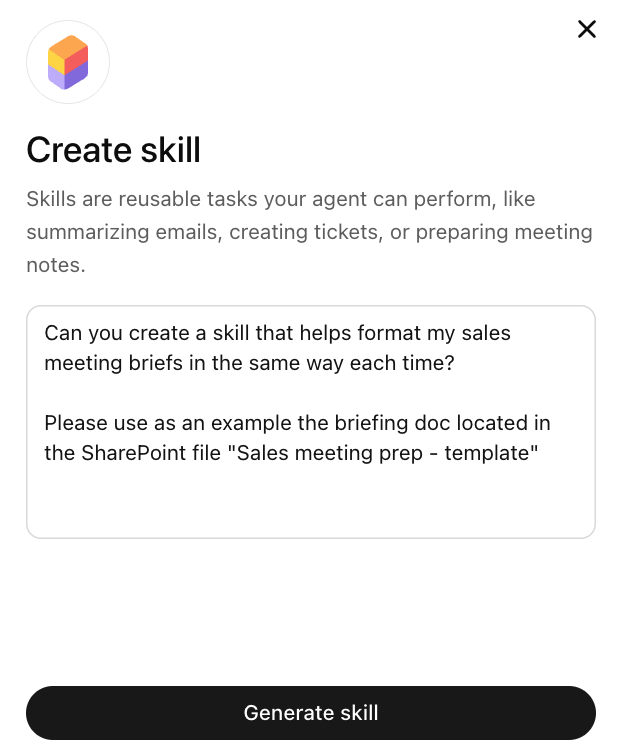
If your team already uses a meeting brief template, upload it to the builder and ask the assistant to use its sections when creating the skill. To refine the skill, edit it in the agent builder or upload files it can use.
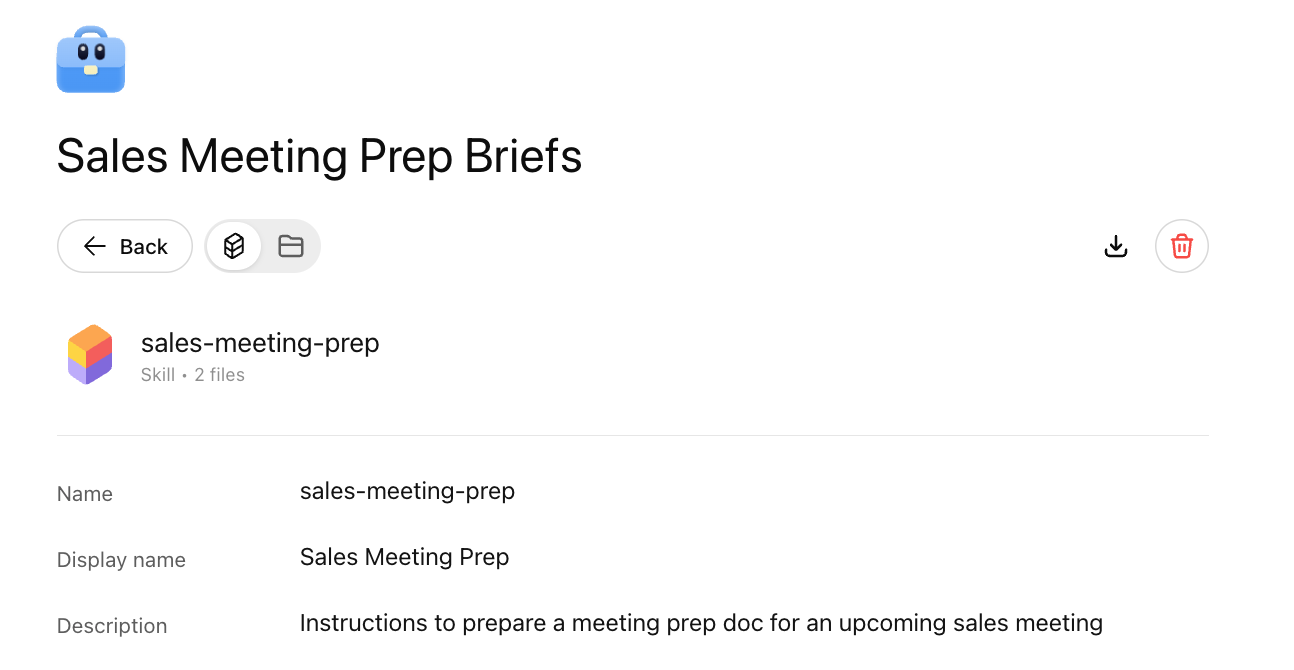
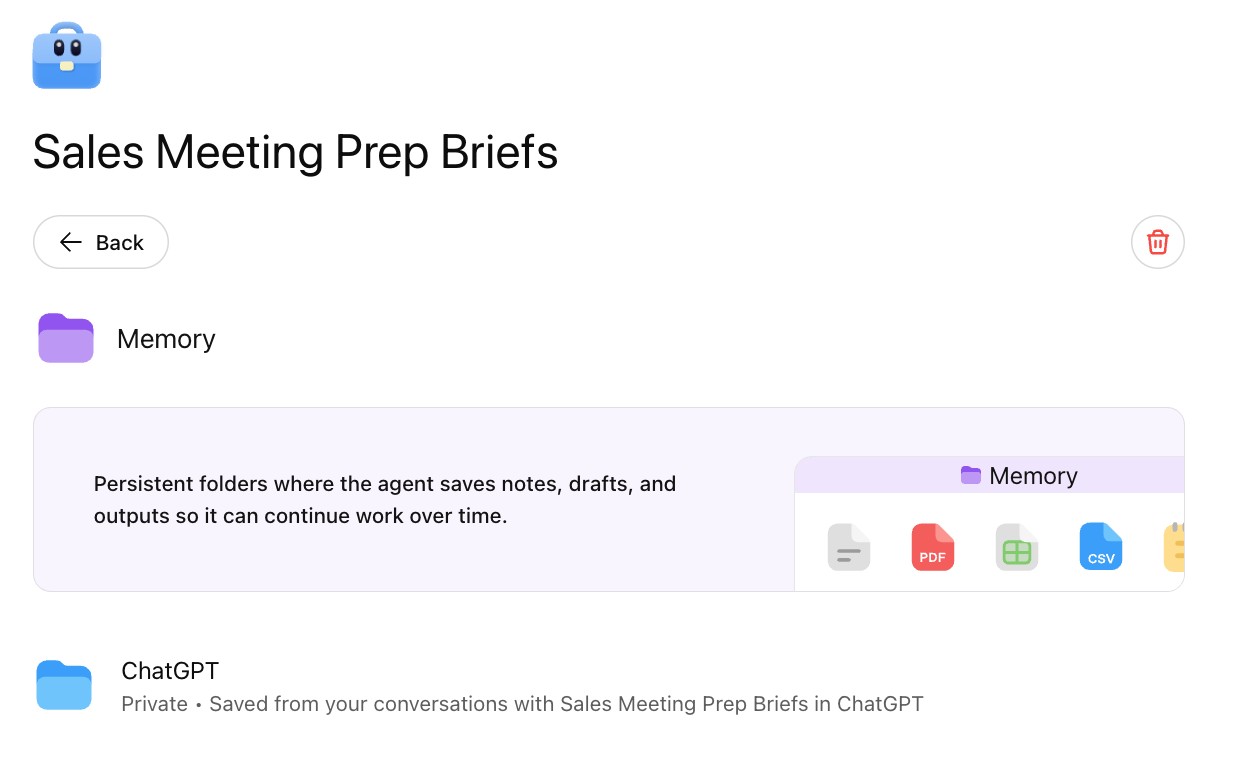
We’ll also enable Memory for our agent. Memory enables the agent to maintain context across different agent sessions, by giving it access to a persistent folder where the agent can save notes, drafts, and outputs. In this case, we’ll give the agent memory for previous runs of this agent so it knows per-user context.
In ChatGPT, the agent keeps a separate memory for each user. Teammates can view their own memories from the agent page. For example, ask the agent to remember which recurring meetings you want it to skip.
Testing your agent
Select Preview in the builder and test the agent with your own accounts before sharing it. Select Create to publish the agent when you’re ready. If you later change the draft, select Update to publish the new version.
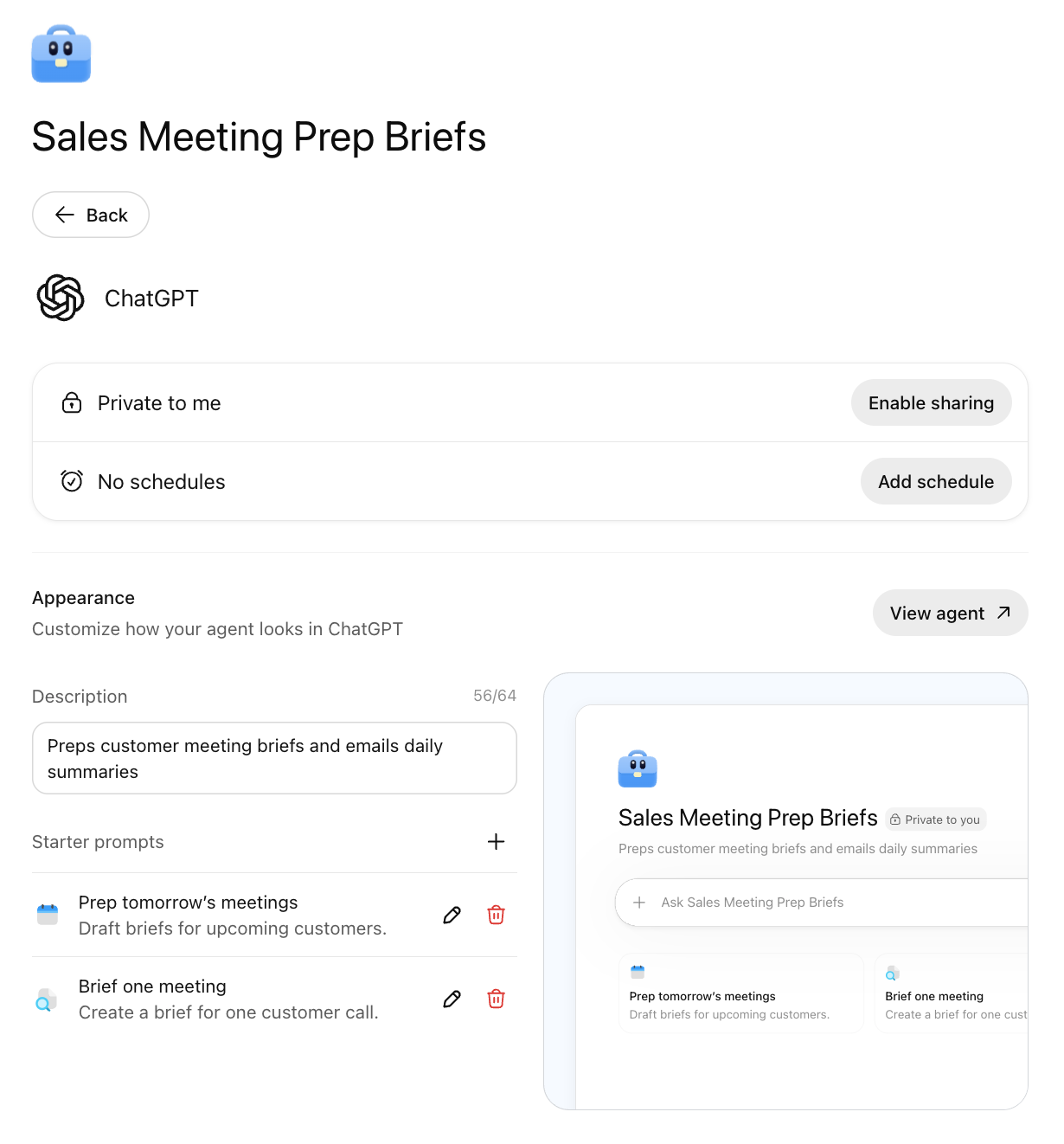
Note that our agent builder has automatically created some sample starter prompts that appear next to the agent in ChatGPT. To view and edit these prompts, we can select ChatGPT under “Channels” in the agent view.
We’ll ask our agent to prepare briefs for the next weekday’s meetings. In the run, we can review the app actions it takes, such as reading calendar events and saving a brief in SharePoint.
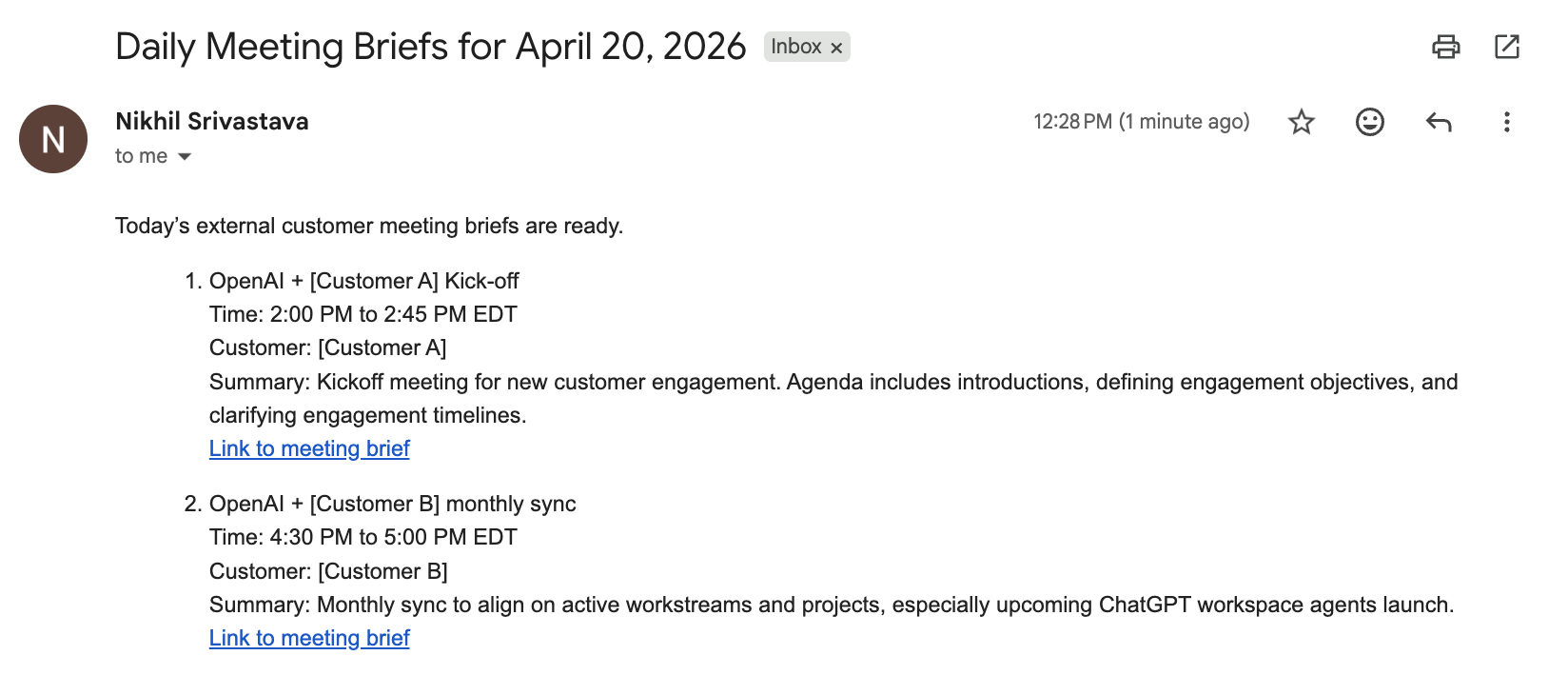
Verify that the expected files exist, the email arrived, and its links open for the recipient. The screenshots below illustrate an email and brief from a separate run for same-day meetings.
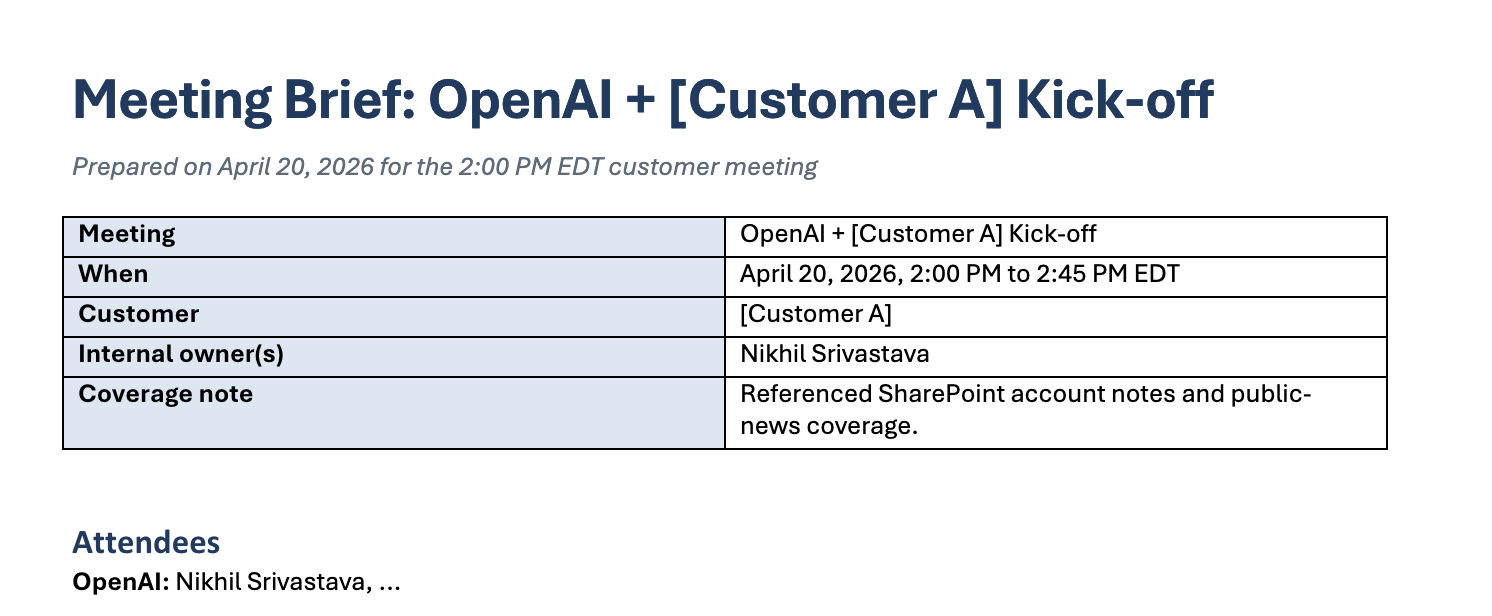
You can run additional tests with different input data - for example, you might ask the agent to prepare a brief for a meeting that you already had last week, to compare its output with a human-generated prep doc. You can also add that prep doc to the skill’s files as an example. You can update the agent’s instructions, configure its apps and permissions, or update its skill to refine the output it produces.
Deploying your agent
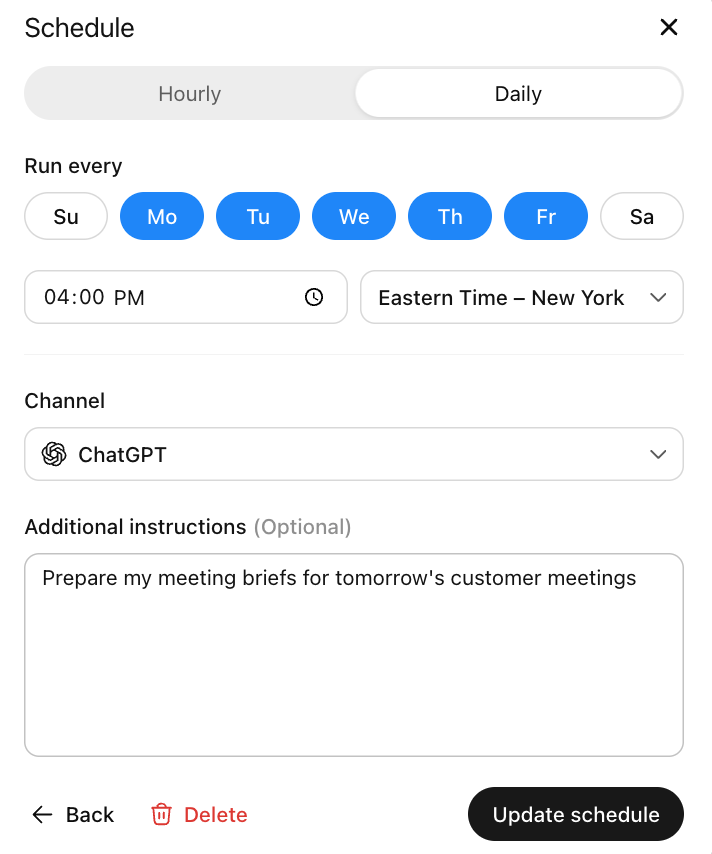
Open the published agent in ChatGPT and select Automations. Choose the ChatGPT channel and set the schedule to weekdays at 4 p.m. Eastern. Enter the instructions for the next weekday’s meetings and select Add automation. The schedule runs the published version as the person who created the schedule. Check the first run for any approvals or failed actions before relying on the email.
The image below shows the same weekday settings in an earlier version of the schedule editor. For a weekly brief instead, choose Sunday evening and ask the agent to cover the coming week.
To share the agent, open it in the builder and select Share. Your workspace admin controls whether you can share agents.
Invite sales teammates with Can chat so they can run the agent. To let a teammate maintain it with you, grant Can edit. Editors can update the shared draft and publish new versions. Eligible managed workspaces can also grant access to a workspace group. A teammate with permission to build agents can duplicate the agent to make a separate version. See the workspace agent sharing guide.
To get recurring personal briefs, each teammate connects their own Google Calendar and Gmail accounts and creates their own ChatGPT schedule. Anyone who can run the agent can also use its enabled SharePoint actions through the sales team service account. Before sharing, check which content the service account can access and which SharePoint actions the agent can take.
If your workspace allows directory publishing, you can also list the agent for workspace members who have access to agents. They can find it in Agents under Team directory.