


Codex use case
Getting Started with Daybreak Blue.
Give selected team members access and check that they can use Daybreak in Codex.
Daybreak Blue reduces refusals on supported models for authorized defensive work. As a ChatGPT Enterprise workspace owner, give approved team members access to review internal code in Codex.
Best for
- Enterprise workspace owners rolling out Daybreak Blue to an approved group.
- Security team members checking their workspace access in Codex.
Contents
Getting Started with Daybreak Blue.
Give selected team members access and check that they can use Daybreak in Codex.
Daybreak Blue reduces refusals on supported models for authorized defensive work. As a ChatGPT Enterprise workspace owner, give approved team members access to review internal code in Codex.
Daybreak Blue reduces refusals on supported models for authorized defensive work. As a ChatGPT Enterprise workspace owner, give approved team members access to review internal code in Codex.
Related links
Best for
- Enterprise workspace owners rolling out Daybreak Blue to an approved group.
- Security team members checking their workspace access in Codex.
Before you start
Sign in as a workspace owner and open Workspace status and access for the Enterprise workspace your team will use. Look for Daybreak Blue under Trusted Access.
What you’ll accomplish
- Request workspace access if you haven’t applied. If Daybreak Blue shows In review, wait for OpenAI’s welcome email.
- Give your team access when Daybreak Blue shows Active.
- Check access in Codex with a team member who has the role. If you’ve already assigned the role, start here.
Using an API key for the Responses API or Codex? Set up an API project. If your team uses both ChatGPT sign-in and API keys, complete both setups.
Request access for your workspace
Gather what you’ll need for the application.
- Business details. Use the legal name, address, and contact details from your business records. Have a tax or registration number and supporting documents ready if requested.
- Intended use. Have the workspace name and ID handy. Describe what your security team does and which defensive workflows it plans to run.
- Verification contact. Use an email address the person completing verification can check. Persona may ask for proof they can act for the business. For identity verification, have an original, unexpired physical government-issued photo ID and a device with a camera ready if requested.
In Trusted Access, complete any outstanding business verification, then open the Daybreak Blue application. Complete the requested attestations, have an authorized signer accept the terms if prompted, and submit. See the verification requirements for accepted documents.
If your workspace doesn’t show the application, follow the enterprise onboarding guide. On that path, submit the enterprise intake form first, then follow the verification email from Persona.
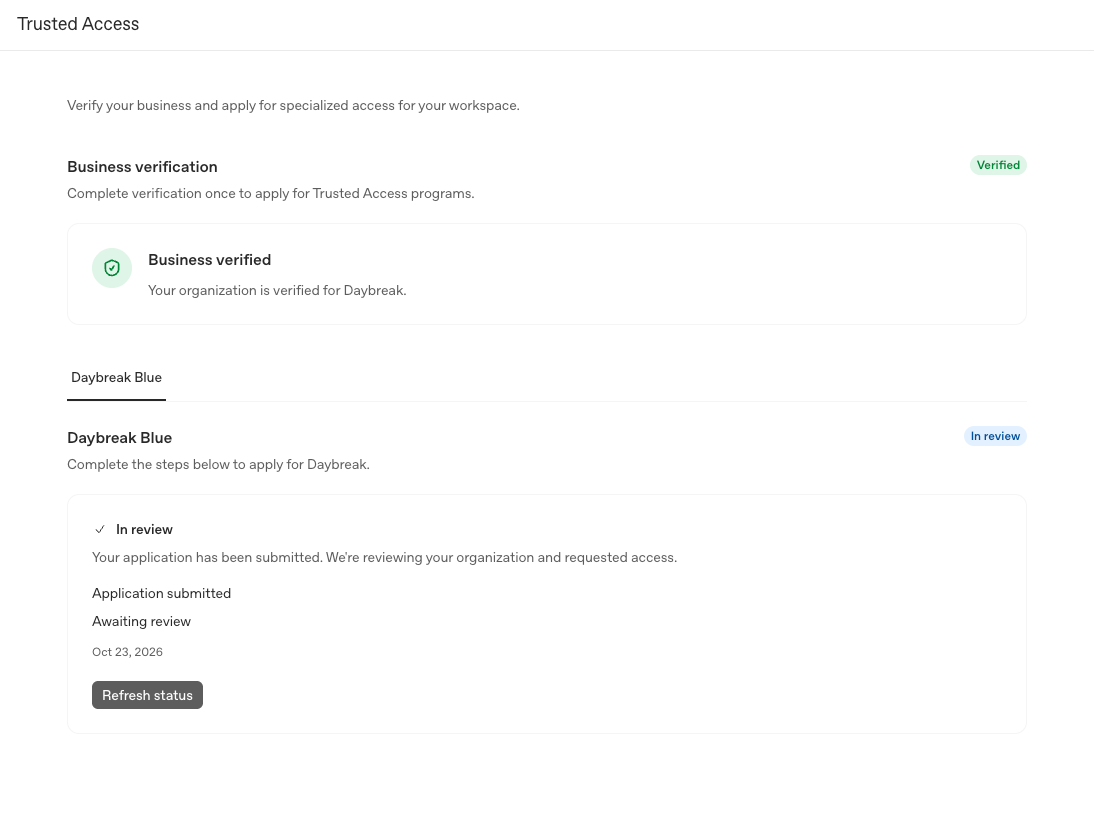
When OpenAI emails you that the workspace is ready, return to Trusted Access.
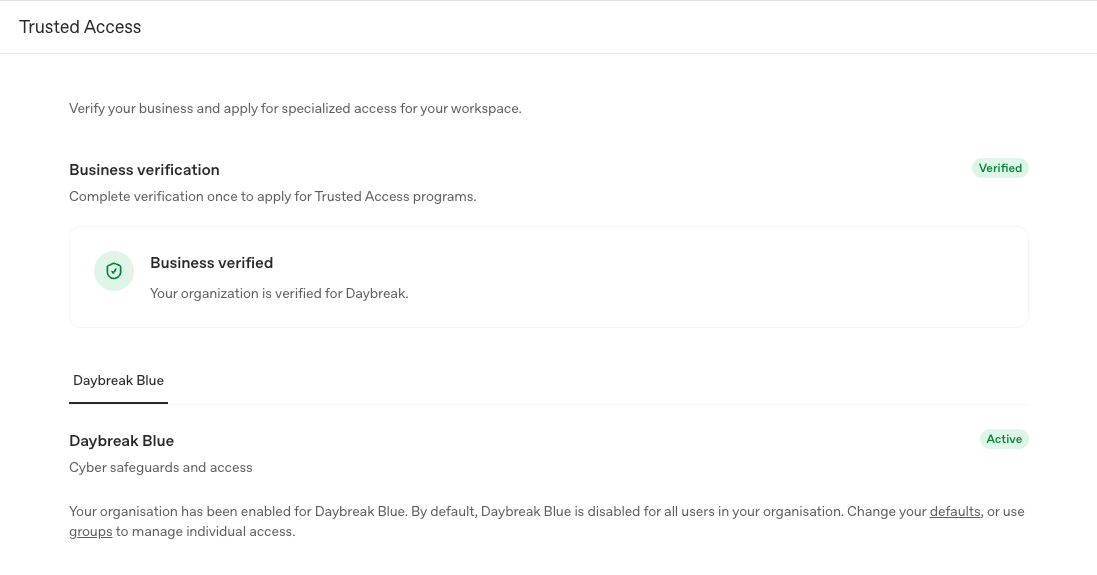
Enable Daybreak for your team
Open Admin Console → Models and check Workspace default → Cybersecurity. For a new rollout to selected members, leave Daybreak Blue off here. If it’s already on, first give everyone who should keep access a role that grants it. Then you can turn the default off and select Save changes.
- In the Admin Console, open Groups & roles. Choose a custom role used only by approved team members, or create and save a new role for the team.
- Return to Models → Roles. Select Add role override and choose your role. If it already has an override, open its ⋯ menu and select Edit override.
- Under Cybersecurity, set Daybreak Blue to On. Under Models, enable the model your team will use, such as 6 Sol for GPT-6 Sol. Select Save changes.
- Return to Groups & roles and assign the custom role to the approved group. For direct member assignments or the Permissions & roles layout in workspace settings, follow the role assignment instructions.
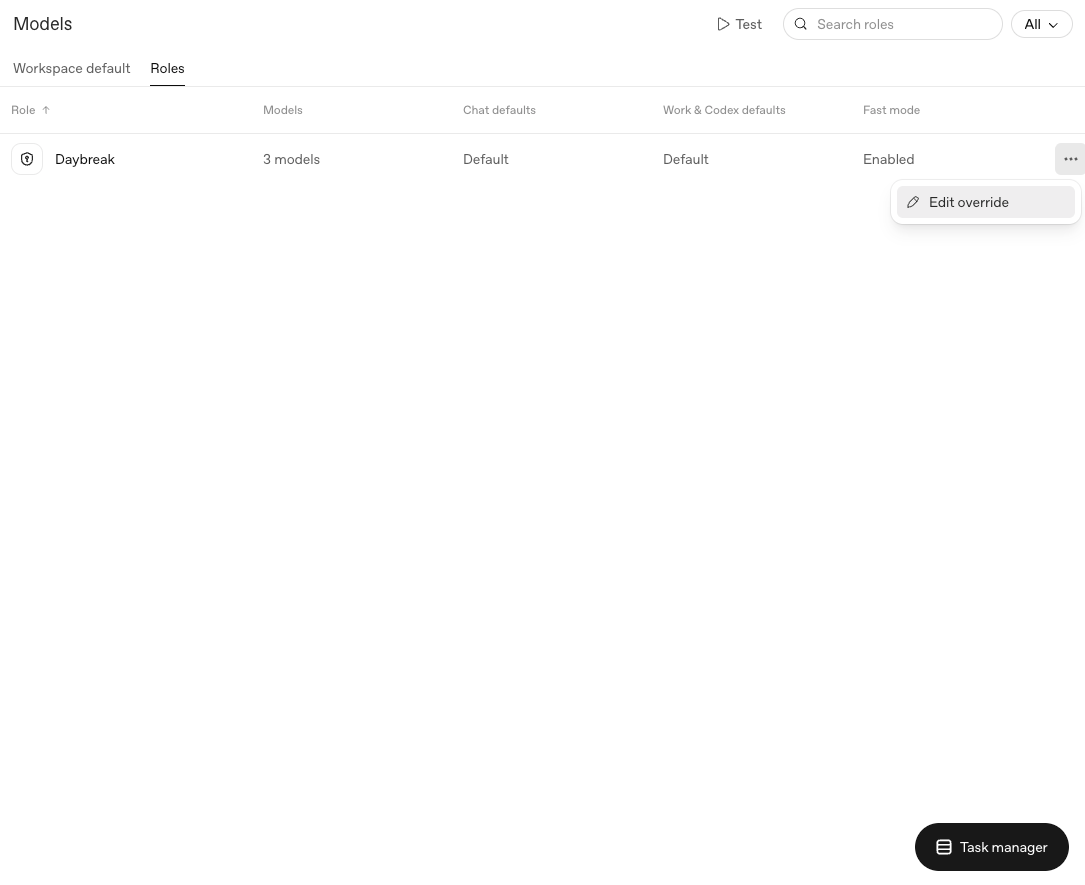
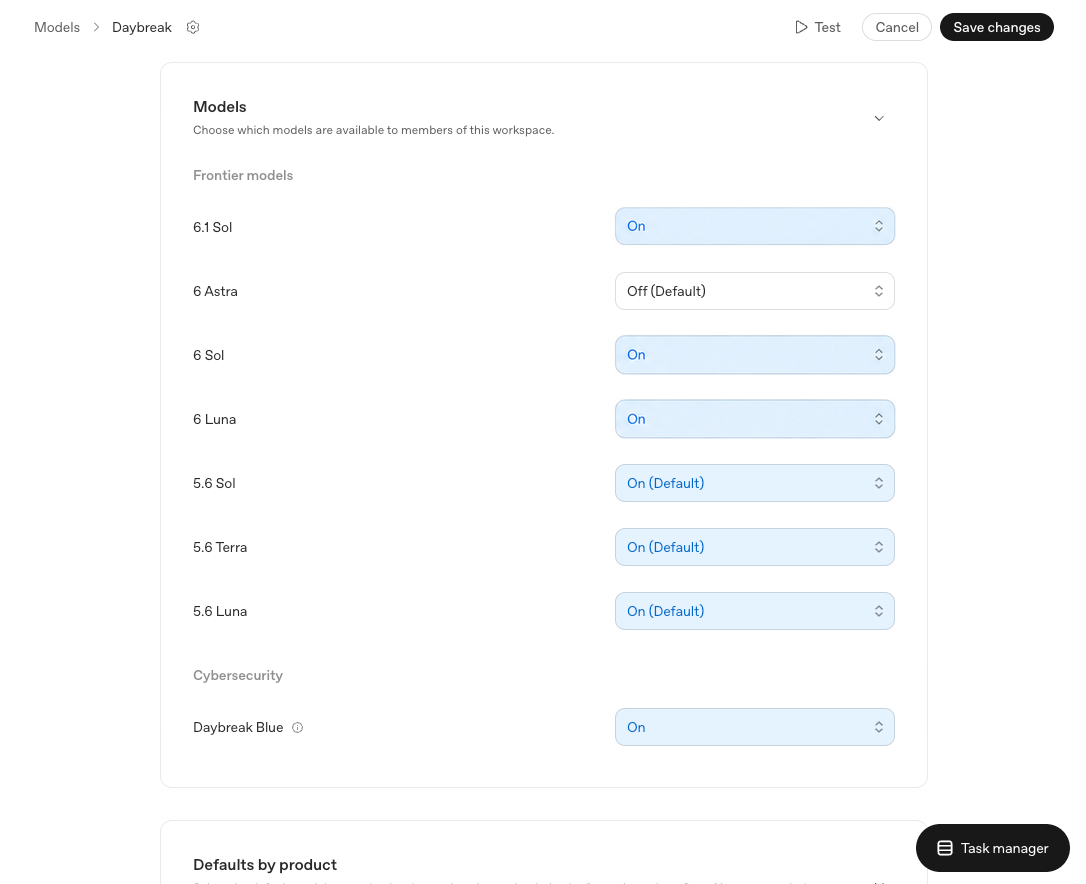
Reopen the role in Models → Roles and confirm that you saved both Daybreak Blue and the model you chose. In Groups & roles, check who has the role, including through group membership. For someone outside the rollout, check whether any of their other roles grant Daybreak Blue. Allow about 10 minutes for changes to take effect before a team member checks access in Codex.
For other rollout options, see the team setup guide.
Check access in Codex
Ask one member with the role to open the ChatGPT desktop app, sign in with their ChatGPT account, and select the approved workspace. Have them open Codex, start a chat, and open the model menu below the message box.
In that menu, turn Daybreak on and select the model the owner enabled. GPT-6 Sol supports reduced refusals with Blue. For another model, check the Daybreak model support table.
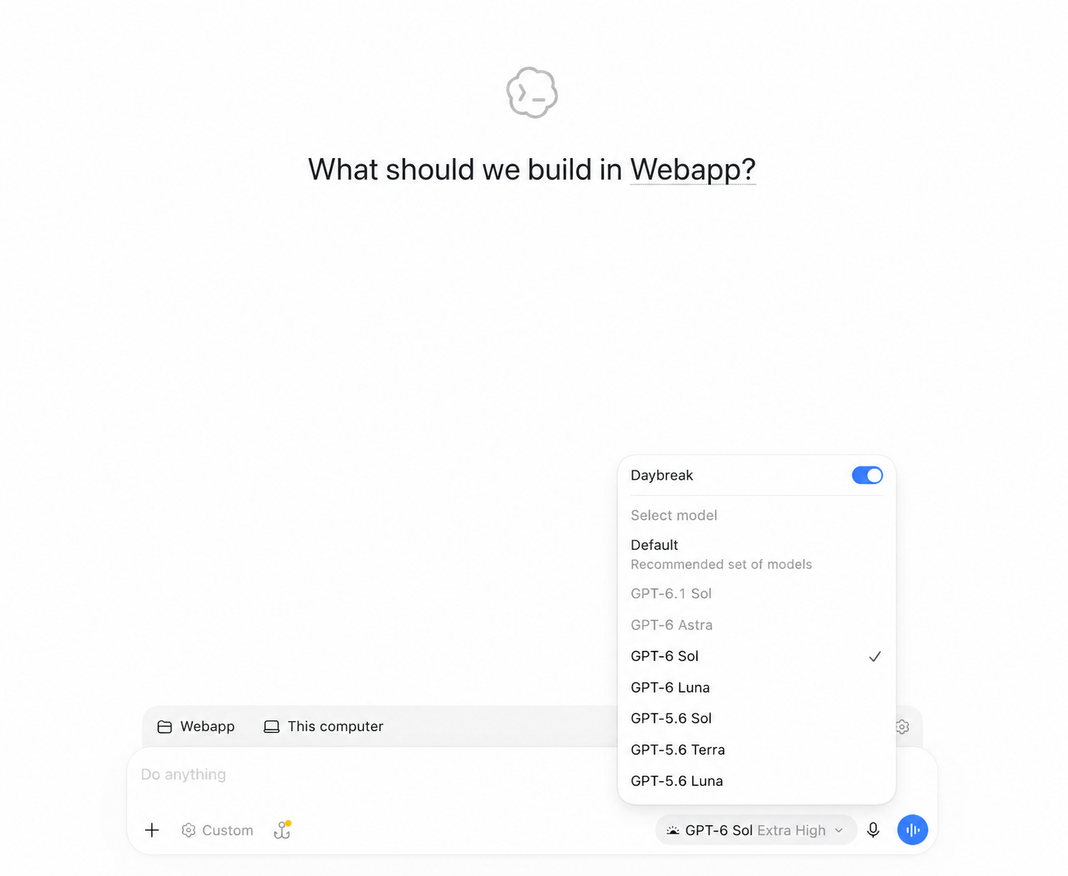
Have the member try a small task in that chat, such as “Suggest two tests for a patch that rejects expired session tokens.” Check that the chat returns a reply without a model access error.
If the toggle or model is missing, ask the member to refresh the app and check which workspace they’re using. As the owner, confirm that the member has the intended role, directly or through their group. Then reopen the role in Models → Roles and check its Daybreak Blue and model settings. For access errors, see Daybreak troubleshooting.
Run your first security scan
To review code with the team, follow Run your first security scan. Start with one repository the team owns or has permission to assess.
Set up an API project
Workspace roles apply to people who sign in with ChatGPT. For API keys, an API organization owner enables Daybreak Blue separately for each project that needs it.
- Confirm which organization is approved. Open Organization status and access in the API Platform and check your Daybreak approval email for the intended API organization. If the email only names your ChatGPT workspace, ask your OpenAI account team to confirm API access before proceeding.
- Enable Blue for the project. In the approved organization, choose or create a non-default project for your team’s internal security work. Open Project settings → General → Daybreak model access, turn on Daybreak Blue, and select Save. Add the approved users to the project and allow up to 15 minutes for the change to take effect.
- Check that a request uses Blue. Have a project member use an API key from that project to send a Responses API request with an approved model such as
gpt-6-solandaccess_programs.cyberset todaybreak_blue. When the response includes that field, its value should bedaybreak_blue. The Responses API guide has a request you can copy.
If your team uses a command-line client, follow the instructions for Codex CLI or Codex Security CLI. For personal access, use the individual application.
Related use cases
Audit dependency incidents
Use Codex to turn a public package or supply chain advisory into a read-only audit, then...
Automate security scans in CI
Add the Codex Security CLI to your CI pipeline
Fix a finding from your security scan
Use the Codex Security plugin to turn a reviewed scan finding into a focused patch