
Insights in the Admin Console helps you understand what teams use ChatGPT Work and Codex for and where credits are spent. Open a category in the workspace overview to see its tasks and usage. Check the scope shown in each view before comparing results.
Use these views to identify workflows to assess with the people responsible for them. Pair usage and spend with team records to understand whether the work takes less effort, meets quality standards, or produces better results.
Analytics views
The Admin Console includes analytics for ChatGPT Work and Codex. Usage shows activity and consumption. Insights groups usage into categories and tasks. For engineering work, Code review shows review activity and findings.
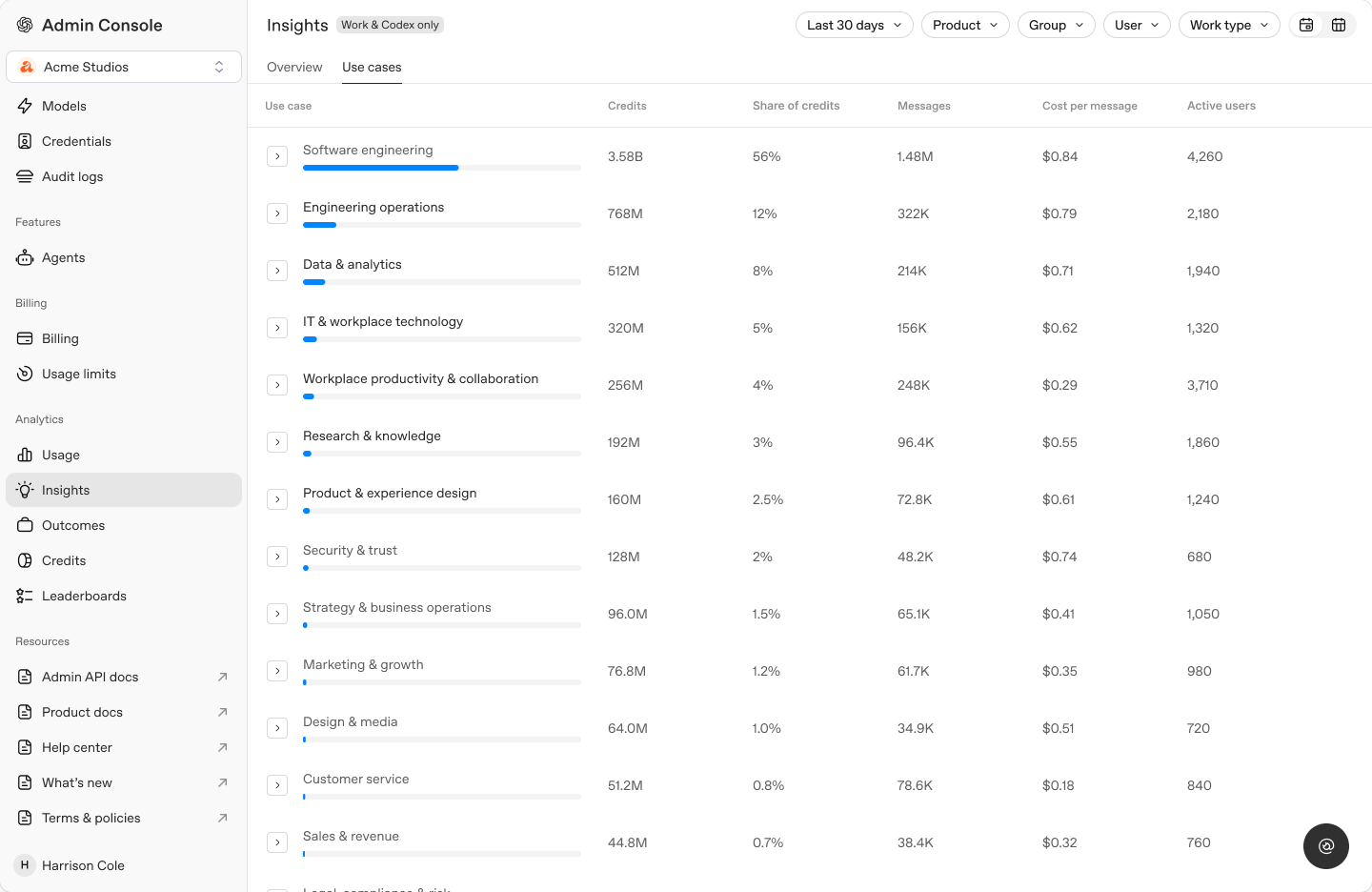
If you’re looking at tokens, use the token measures available in Usage. Message share, credit share, and token share describe different things; keep those labels intact when comparing or sharing a result.
Open Insights
In the Admin Console, select your workspace and open Analytics > Insights. You’ll need access to the analytics for that workspace; the views and data you see depend on your permissions and enabled features.
Check the workspace, date range, and available filters before reading the results. Keep them consistent when comparing activity. Insights history is available only from when classification began.
Use cases and tasks
On Overview, use the Use cases / Tasks toggle to switch between broad categories and more specific activity. In the Use cases tab, expand a category to see its tasks.
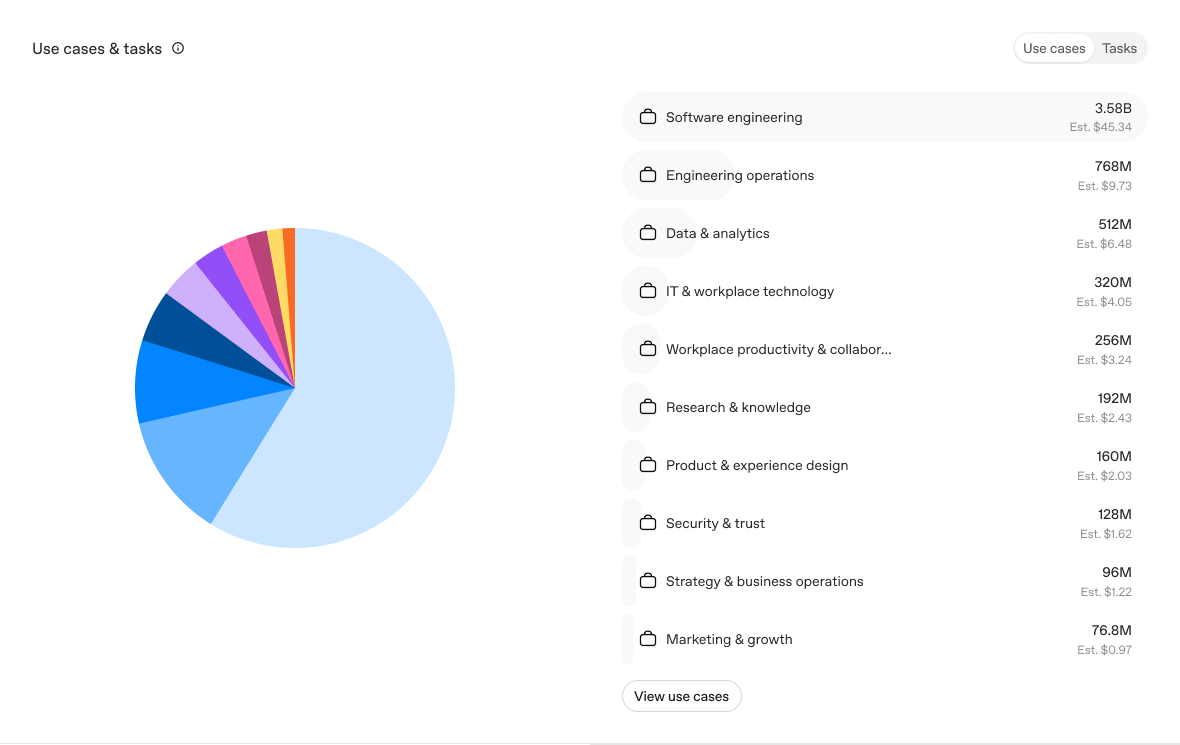
Select a use case or task in the chart to open its details. Use the Use cases table to compare categories and tasks beyond the top 10.
A category may include several workflows. Check its tasks before treating it as a single business process. If some activity is unclassified, note that limitation when describing the results.
Messages, credits, and active users
Read the table’s Messages, Credits, and Active users together to understand each category or task. If a sampling notice appears, the counts shown reflect sampled activity. Don’t scale them up to estimate total workspace activity.
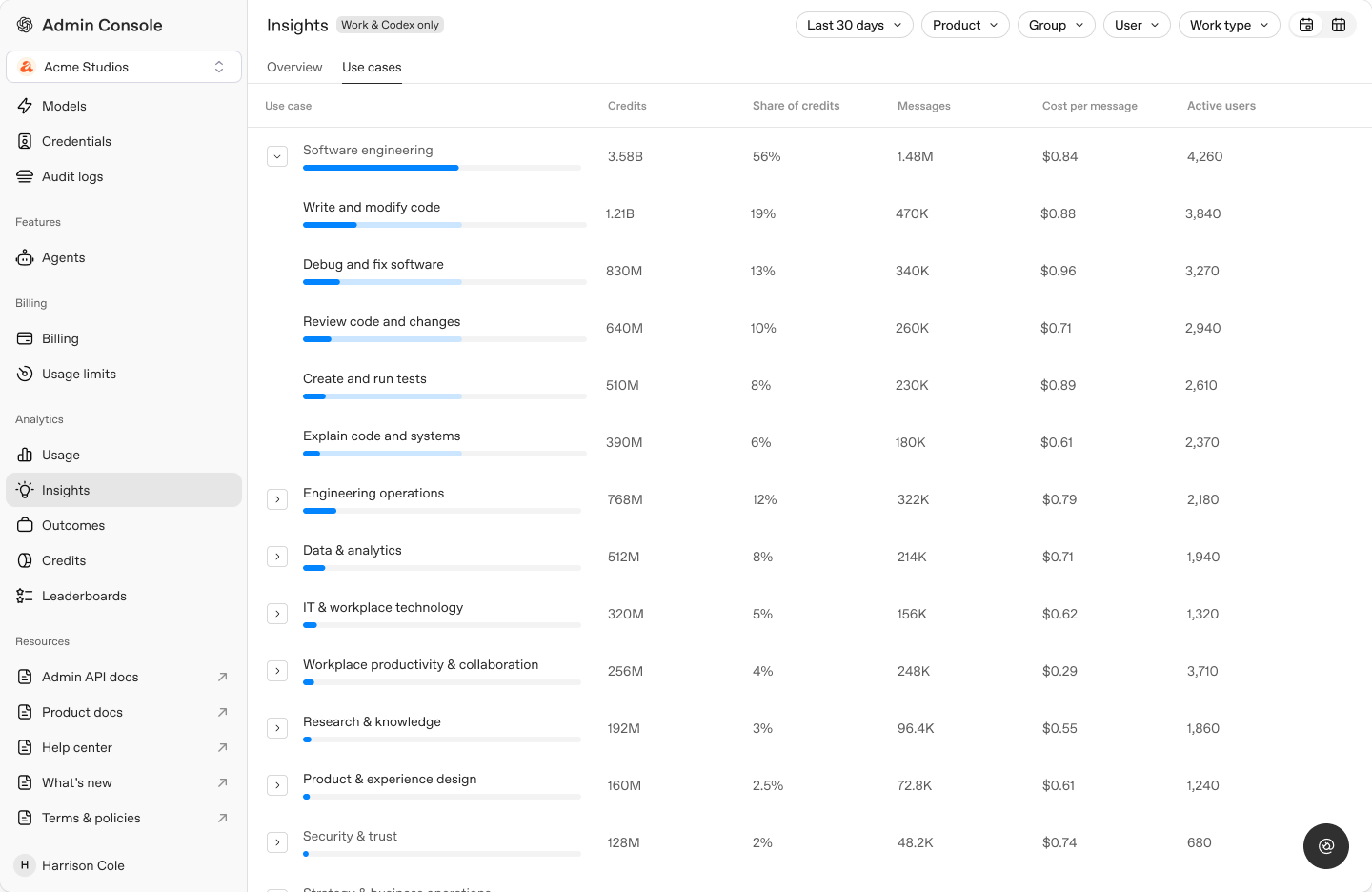
Messages shows the number of messages associated with a category or task. A message count doesn’t tell you how much work the team finished.
Share of credits shows the portion of credit consumption associated with a category or task. Read it alongside Credits and Messages to understand where consumption is concentrated.
Active users shows the number of people active in a category or task. Read it alongside Messages to compare how many people use a category with how much activity it generates.
If a category accounts for a large share of credits, check its tasks, models, and settings. More complex work or different model choices may explain the category’s credit use. Review what the team accomplished before deciding whether that consumption is worthwhile.
If a category has few active users, ask them how they’re using it and where they’re having difficulty. They may have a workflow worth sharing or need more support.
Category details
Open a category’s details to see its tasks and usage breakdowns in a drawer on the right.
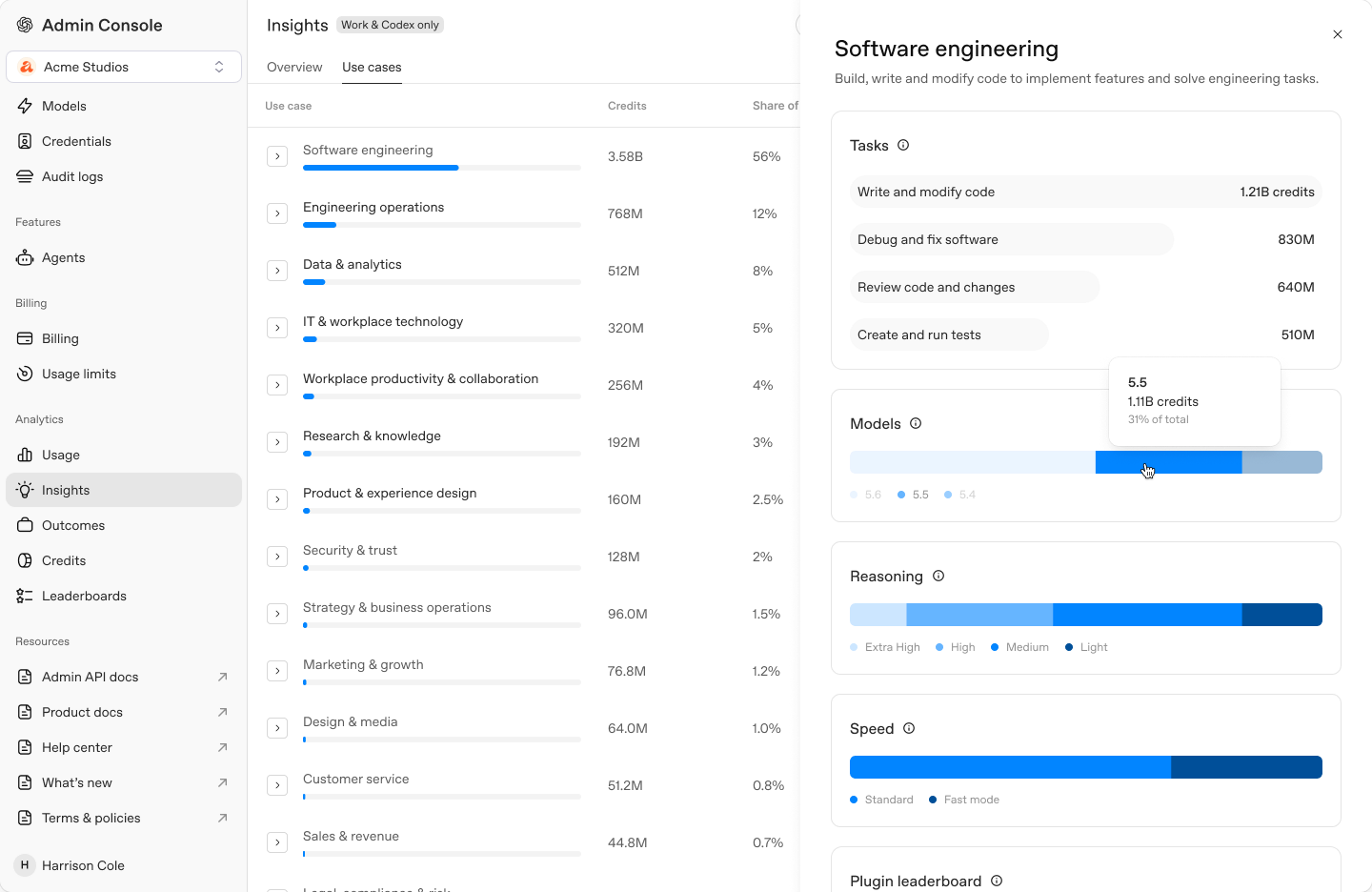
Review the tasks in the category and the credits used by each one. The model, reasoning, and speed breakdowns show each option’s share of credits within the selected category or task. If consumption changes, ask the team whether the work or these settings changed.
Where available, review plugin and skill invocations for the category or task. These counts include activity across ChatGPT Work and Codex within the selected dates and filters. Invocations aren’t the same as messages or completed tasks.
Keep estimates labeled as estimates when you share a finding. Plugin and skill credit allocations can overlap, so don’t add those views together to calculate total investment. For more on interpreting credits and billing impact, see ChatGPT Work usage and cost.
Code review
If you’re reviewing engineering work, open Code review to see the review measures available to your workspace.
- PRs reviewed shows pull-request review activity. A reviewed pull request isn’t necessarily merged or deployed.
- Issues found shows findings from those reviews. Check with reviewers to understand which findings were useful and acted on.
- Issues by priority, reactions, and reaction sentiment add context about the findings and how people responded.
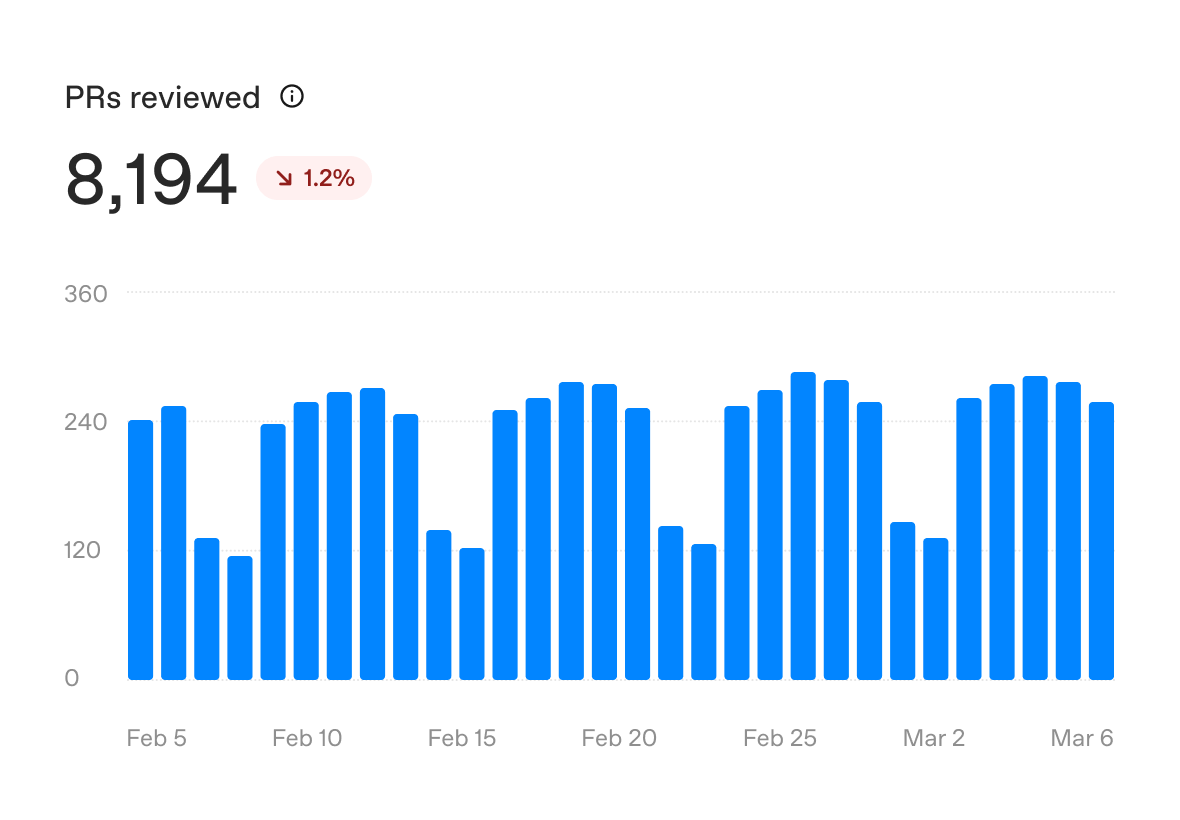
A zero count can reflect no activity or a gap in reporting. Check the date range and whether the relevant reviews are included before interpreting the count.
Assessing value
Choose a workflow your team uses in ChatGPT Work or Codex. Agree with the business owner on the result to improve and how you’ll measure it. Review Insights alongside team records, such as account briefs, inventory plans, or pull requests. Include the people doing the work in the assessment.
Use a consistent reporting period and check any sampling notice. Categories can include several workflows, and activity counts don’t measure completed work. The examples below show how to investigate value using both usage data and evidence from the workflow.
Fixing bugs
Is Codex helping engineers resolve bugs with less investigation and rework?
Choose a recurring bug type in one service, such as incorrect input handling. Review the issues, fixes, and regression tests with an engineer who knows that code.
- Compare similar fixes. Record investigation, implementation, and review time for bugs of similar complexity. Separate hands-on effort from time waiting for a review or release.
- Check Insights. Open Software engineering and look for tasks relevant to the investigation. Review credits and active users for the period you’re comparing.
- Confirm the result. Check that the test reproduces the bug and passes with the fix. Ask what engineers corrected, and note reopened issues or regressions.
- If confirmed fixes need less total effort, share the workflow. If rework stays high, improve the reproduction steps or repository context and compare again.
Adding tests
Is Codex helping the team cover important failure cases with less manual effort?
Choose a module with a known coverage gap. Agree which behaviors and failure cases need tests before comparing the results.
- Define the gap. List the missing behaviors and record the effort needed to add comparable tests. Use your test reports to capture the starting coverage.
- Check Insights. Find relevant tasks under Software engineering. Review credits and the available model and reasoning breakdowns for the same period.
- Inspect the tests. Have an engineer check that assertions catch the intended failures. Note flaky results, added runtime, and time spent rewriting or maintaining the tests.
- Reuse the approach if useful tests take less effort to land. If they pass without catching the failure, clarify the expected behavior and try again.
Refactoring code
Is Codex helping the team finish a refactor while preserving expected behavior?
Choose one bounded change, such as replacing a deprecated API across a package. Agree which call sites are in scope and how the team will verify the result.
- Set the scope. Record the call sites to update and the effort for a comparable manual change. Label estimates, especially if the work was previously deferred.
- Check Insights. Review relevant Software engineering tasks and their credits for the same period. Check the available model and reasoning breakdowns if consumption stands out.
- Validate the change. Review the diff, run the relevant checks, and look for missed call sites or behavior changes. Include review, corrections, and follow-up fixes in the effort.
- Expand to another package if the refactor meets the agreed checks. If too much cleanup remains, narrow the change or provide a working example first.
Account research
Is ChatGPT Work helping sellers prepare accurate account briefs with less effort?
Choose a sales team that prepares briefs regularly. Agree what each brief should include, such as account history, current priorities, and questions for the customer.
- Compare similar briefs. Record preparation and review time before and during the trial. Use the same quality criteria and accounts that need a similar level of research.
- Check Insights. Look for account research and planning under Sales. Use the available group filter to focus on the team. Review credits, model choices, and any available plugin or skill activity for the same period.
- Review the briefs with sellers. Check the facts against source records and assess whether the research helps prepare for the conversation. Include corrections in the effort, and track whether time saved goes into customer conversations or follow-up.
- Share the approach if accurate briefs take less effort. If important context is missing, improve the source material or provide a shared skill. Use CRM records to assess any later change in qualified opportunities or sales; Insights alone doesn’t establish that connection.
Inventory planning
Is ChatGPT Work helping the team prepare reliable inventory plans with less manual work?
Choose a recurring planning cycle, such as stock for an event. Agree which products and locations are in scope and which sales and stock records the team will use.
- Record the current process. Measure time spent gathering records, preparing the plan, and correcting it. Note stock shortages or excess stock from comparable cycles.
- Check Insights. Find the category and tasks that match the team’s planning work. Review credits and active users for the same period. Confirm the match with the team before attributing the category’s usage to this workflow.
- Check the plan against actual results. Have the inventory owner verify quantities, assumptions, and missing data. Include review and corrections in the effort. After the cycle, compare planned stock with sales and remaining inventory.
- Reuse the workflow if plans are reliable and take less effort. If stock shortages or excess stock increase, revisit the inputs and assumptions. Use inventory and purchasing records to assess any cost reduction.
Record the assessment. Note the use case, owner, and reporting period. Include the baseline, results, credits, and limitations. Record any changes agreed with the team and a date to review them. Count completed work from team records, and label estimates.
To assess ROI, compare the value of the improvement with the costs of AI, setup, training, and ongoing support. Include time spent reviewing and correcting the work. Time saved isn’t automatically a cash saving; check how the team uses that capacity.
Before raising usage limits, review current limits, consumption, and the work that needs more capacity. Credits consumed aren’t automatically an additional invoice charge. See ChatGPT Work usage and cost.
Usage insights are one part of understanding the return on your investment in ChatGPT Work and Codex. They show usage and credit consumption within the selected scope. The teams doing the work can explain what changed, whether results improved, and what that improvement is worth. Use both to decide which workflows to expand and where the team needs more support.